Make Videos in ChatGPT with iArt
Add iArt to ChatGPT as a custom MCP server, sign in once, and ask ChatGPT for a motion graphics video right in the chat. You get an MP4 and a share link back.
With iArt connected, ChatGPT can make motion graphics videos for you. You describe the video in the chat, ChatGPT sends the brief to iArt, and a few minutes later you get an MP4, a share link and a link to keep editing in iArt. You add one URL and sign in; there is no API key to copy.
What You Need
- ChatGPT with custom MCP servers available in your account or workspace.
- An iArt account on Pro, Ultra or Max. You can connect with any account, but making a video needs one of these plans. Videos use your iArt credits at the same prices as in the app.
Step 1: Add iArt as a Custom MCP Server
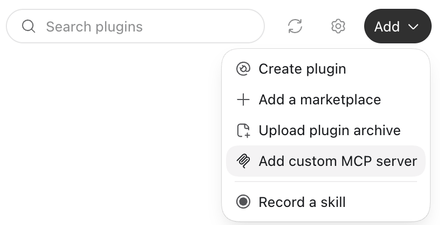
- In ChatGPT, open Customize, then Plugins.
- Click Add, then Add custom MCP server.
- Fill in the form:
- Name: iArt
- Description (optional): for example, "make motion graphics videos"
- Server URL:
https://app.iart.ai/api/mcp - Authentication: OAuth
- Read ChatGPT's note about custom MCP servers, tick I understand and want to continue, and click Create as a plugin.
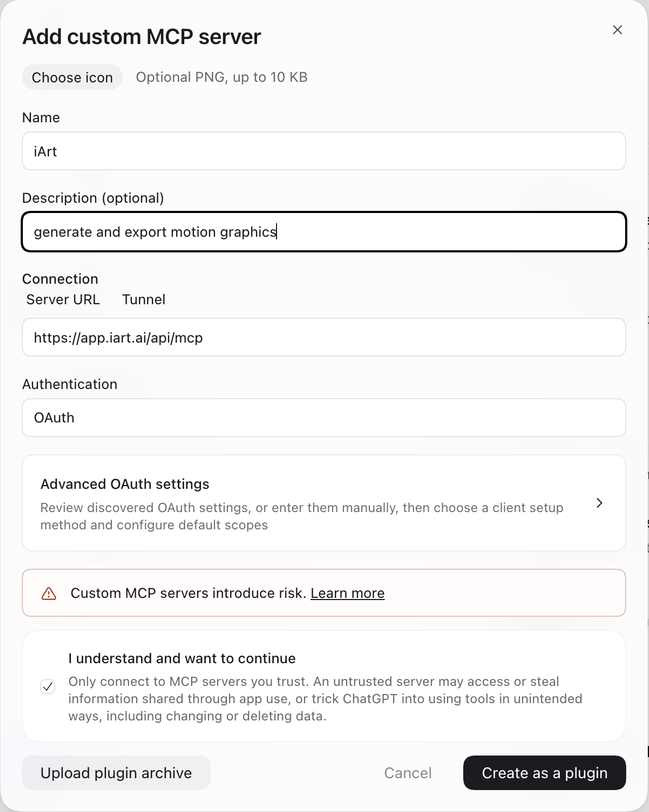
If you don't see Add custom MCP server, your ChatGPT plan or your workspace settings may not allow custom MCP servers. Ask your workspace admin.
Step 2: Connect and Sign In to iArt
- ChatGPT explains what it shares with apps you connect. Click Connect iArt.
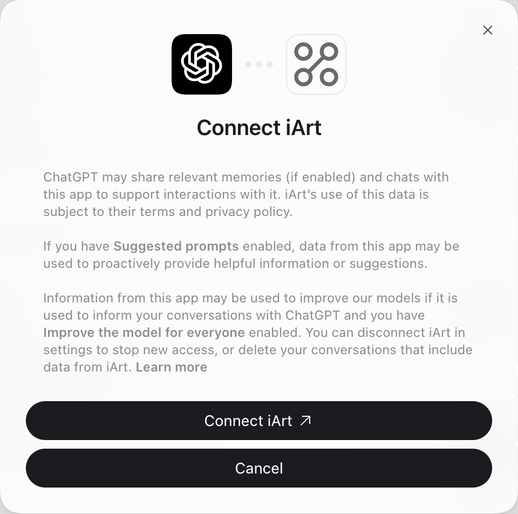
- Your browser opens on iArt. Sign in to your iArt account if you aren't already.
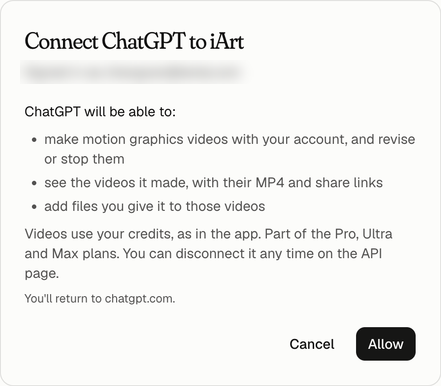
- iArt shows what ChatGPT will be able to do: make, revise and stop videos with your account, see the videos it made, and add files you give it. Click Allow. You return to ChatGPT.
Step 3: Ask ChatGPT for a Video
Start a new chat and ask for a video. Pick iArt in the message box (or just mention iArt) so ChatGPT uses it. For example:
Use iArt to make a 10-second title card that says "Hello from iArt". Clean white background, bold black type. 16:9.
ChatGPT starts the video and checks on it until it is done. That takes a few minutes. Then it gives you:
- An MP4 download link. It works for 24 hours, so download the file.
- A share link anyone with the link can watch. It does not expire.
- An edit link that opens the project in iArt.
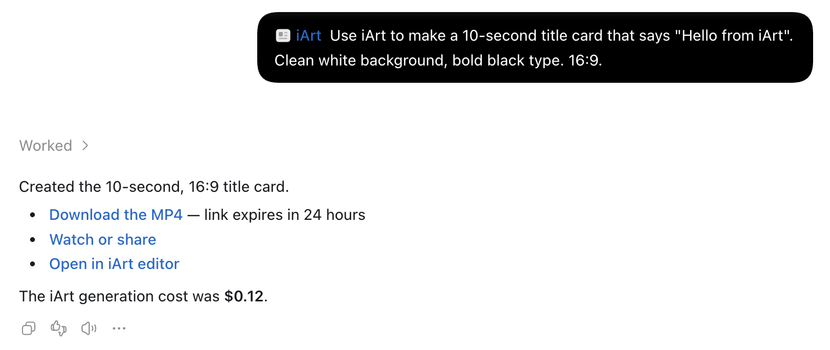
This 10-second title card cost $0.12 in iArt credits. Longer videos, voice-over and higher resolutions cost more.
Tips
- Give ChatGPT your material. Attach your logo or screenshots and ask it to use them in the video.
- Change it in words. Tell ChatGPT what to change and it revises the same video. Each revision is made again and uses credits.
- Say the format. Ask for 16:9, 9:16 or 1:1 and a length in seconds.
Disconnect
Remove iArt from Plugins in ChatGPT, or disconnect ChatGPT in iArt on the Developers page under Connected apps.