Make Videos in Claude with the iArt Connector
Add iArt to Claude as a connector, sign in once, and ask Claude for a motion graphics video right in the chat. You get an MP4 and a share link back.
The iArt connector lets Claude make motion graphics videos for you. You describe the video in the chat, Claude writes the brief and sends it to iArt, and a few minutes later you get an MP4, a share link and a link to keep editing in iArt. There is nothing to install and no API key to copy: you add one URL and sign in.
What You Need
- Claude on the web (claude.ai) or the Claude desktop app.
- An iArt account on Pro, Ultra or Max. You can connect with any account, but making a video needs one of these plans. Videos use your iArt credits at the same prices as in the app.
Step 1: Add iArt as a Custom Connector
- In Claude, open Customize, then Connectors.
- Click Add, then Custom connector.
- Name it iArt and paste this URL:
https://app.iart.ai/api/mcp - Click Continue.
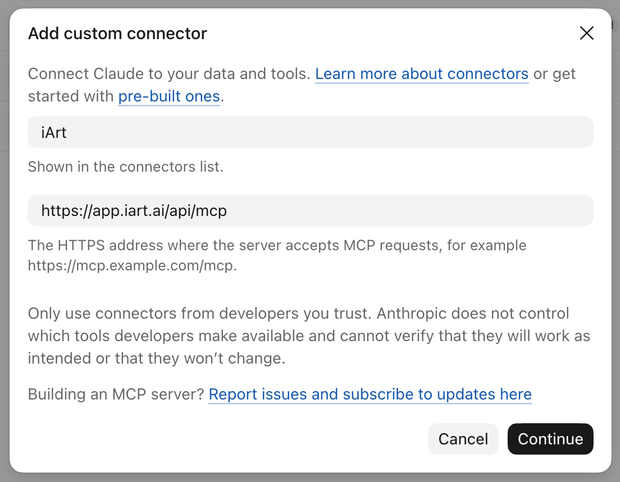
If you don't see Custom connector, your Claude plan or your organization's settings may not allow custom connectors. Ask your workspace admin.
Step 2: Sign In to iArt and Allow
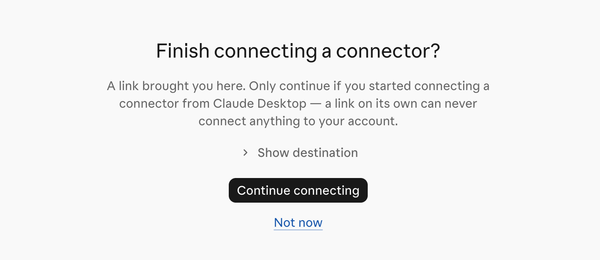
- Your browser opens. If you started from the Claude desktop app, Claude first asks Finish connecting a connector? Click Continue connecting.
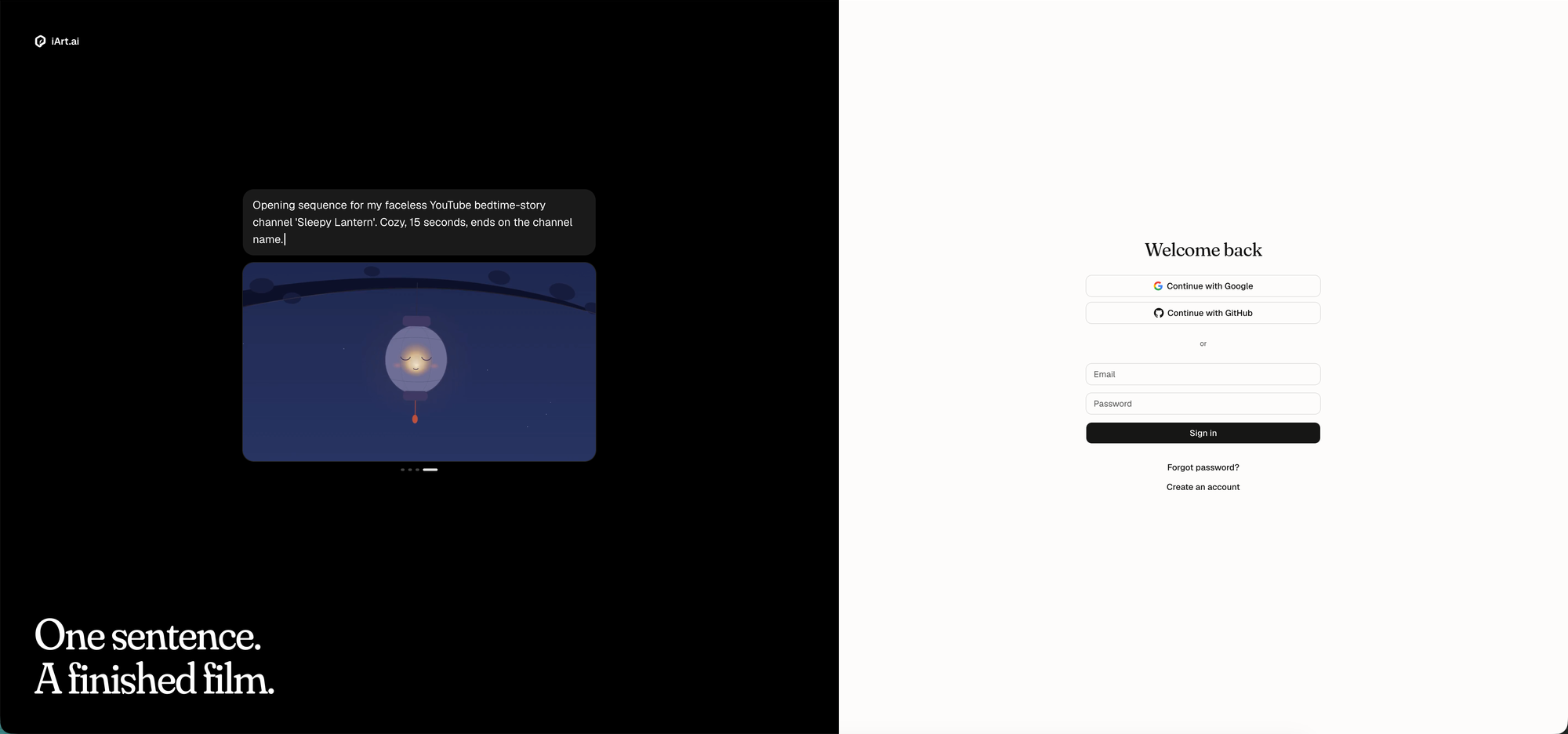
- Sign in to your iArt account with Google, GitHub or your email. If you are already signed in to iArt in this browser, you skip this step.
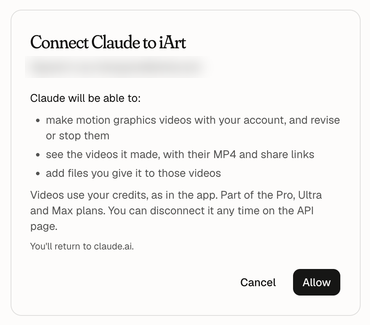
- iArt shows what Claude will be able to do: make, revise and stop videos with your account, see the videos it made, and add files you give it. Click Allow. You return to Claude.
Back in Claude you will see that iArt is connected, with its tools listed: create a video, check on it, revise it, stop it, list your videos, check your account and upload a file.
Step 3: Ask Claude for a Video
Start a new chat and ask for a video. Mention iArt so Claude uses the connector. For example:
Make a 10-second title card with iArt that says "Hello from iArt". Clean white background, bold black type. 16:9.
Claude turns your request into a detailed brief and asks permission to send it to iArt. You can read the brief before it goes. Click Allow once, or Always allow so Claude doesn't ask again.
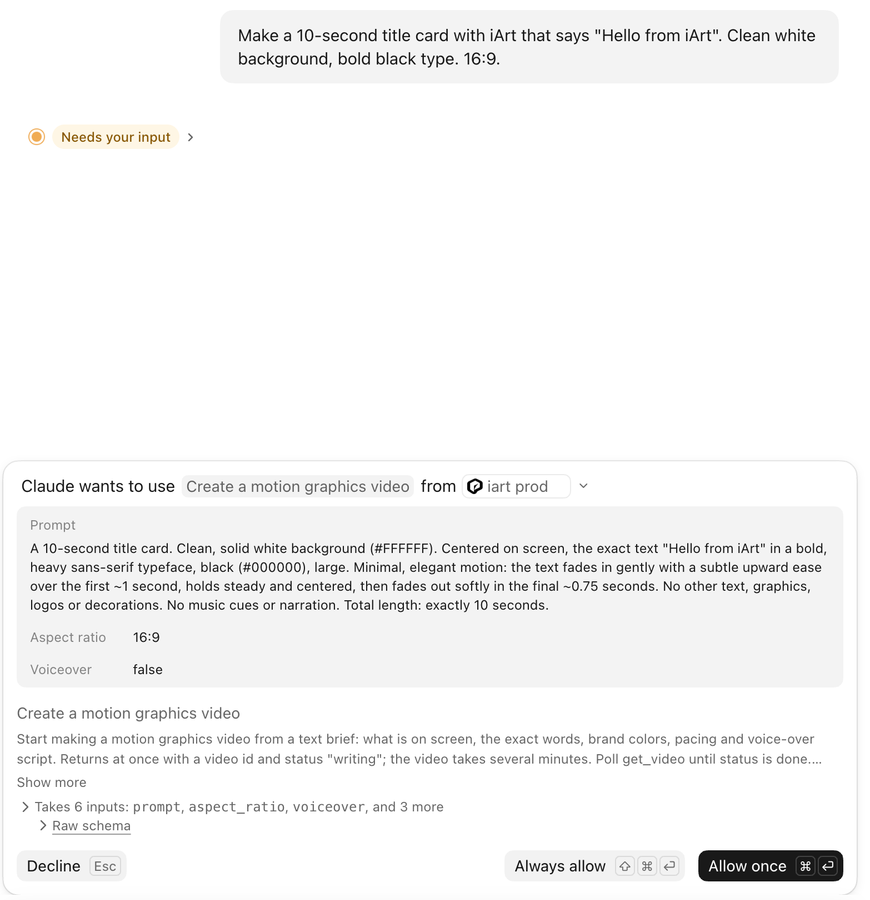
Making a video takes a few minutes. Claude checks on it until it is done, then gives you:
- An MP4 download link. It works for 24 hours, so download the file.
- A share link anyone with the link can watch. It does not expire.
- An edit link that opens the project in iArt, where you can keep working on it.
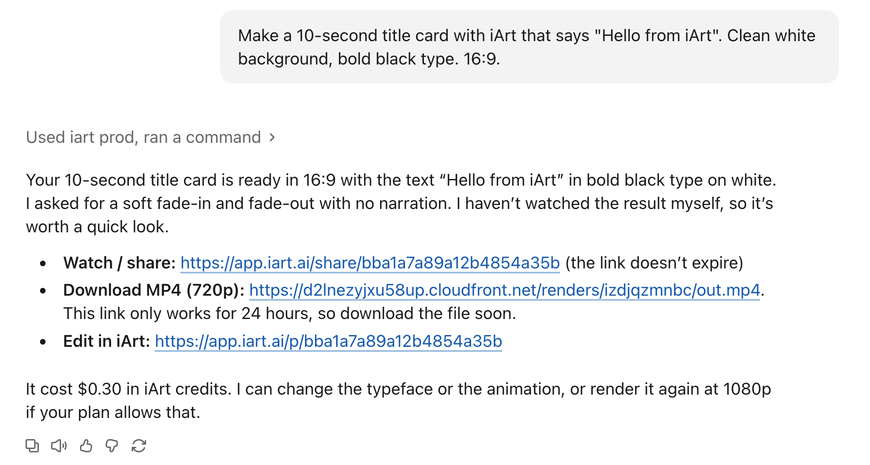
This 10-second title card cost $0.30 in iArt credits. Longer videos, voice-over and higher resolutions cost more.
Tips
- Give Claude your material. Attach your logo, screenshots or a document to the chat and ask Claude to use them; it passes them to iArt.
- Change it in words. Tell Claude what to change ("make the logo bigger", "use a warmer palette") and it revises the same video. Each revision is made again and uses credits.
- Say the format. Ask for 16:9, 9:16 or 1:1 and a length in seconds.
- Several at once. You can have up to 3 videos in progress on Pro, 6 on Ultra and 15 on Max.
Disconnect
Remove the iArt connector in Claude under Customize → Connectors, or disconnect Claude in iArt on the Developers page under Connected apps.