How to Create an Animated Explainer Video in Under 2 Minutes

Why Explainer Videos Still Cost Too Much
A 60-second animated explainer video from a production agency runs $5,000-$50,000. Template tools (Vyond, Animaker) bring it down to $49/month, but you're still spending 2-8 hours per video dragging pre-built elements around a timeline. For most teams, neither option scales.
AI changes the math entirely. Tools like iArt.ai generate original motion graphics from text descriptions — not templates, not stock footage, but custom animations tailored to your brief. The process takes 30-90 seconds.
What You Need
A clear description of the concept you're explaining and the audience you're speaking to. That's it. iArt handles the visual design, animated scenes, and narration from your text alone.
For branded output, attach your logo, product screenshots, or brand color hex codes. The AI threads them through every scene — your logo in the opening, your UI in the demo beats, your palette across all typography and backgrounds.
Step 1: Write Your Concept
The quality of your output depends on the quality of your input. A good prompt includes:
- Topic — What are you explaining?
- Audience — Who is watching?
- Style — Dark/light, minimal/detailed, corporate/playful
- Key points — 3-5 things the viewer should understand
- Duration — 30 seconds, 60 seconds, 90 seconds
Toggle Voice on to add AI-generated narration that syncs with the visuals. You can pick a built-in voice or clone your own by uploading a short audio sample.
Example prompt: "A 60-second explainer video about how our project management tool saves teams 10 hours per week. Professional style, dark theme, smooth data visualizations. Target audience: engineering managers."
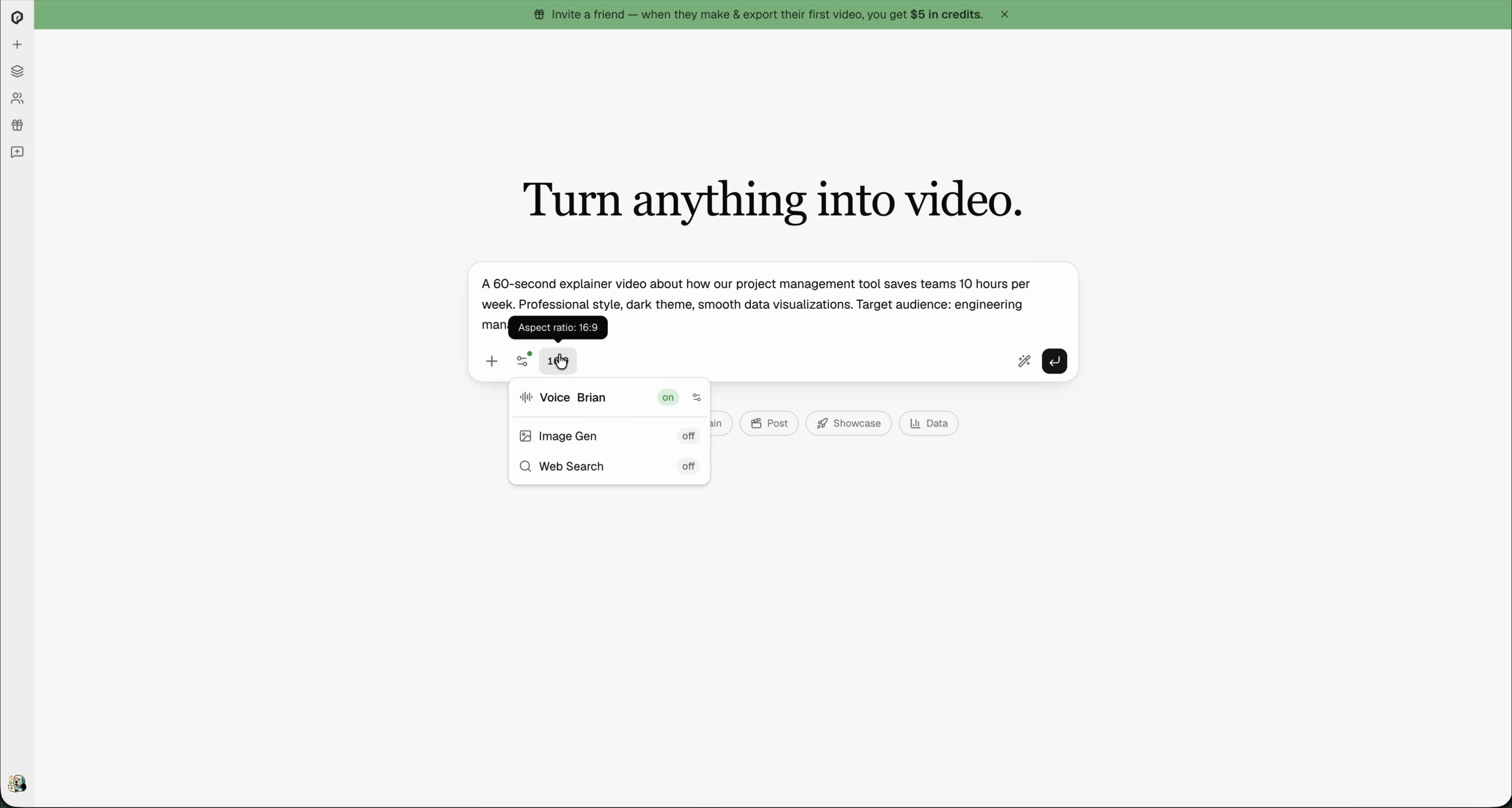
Step 2: Generate the Animation
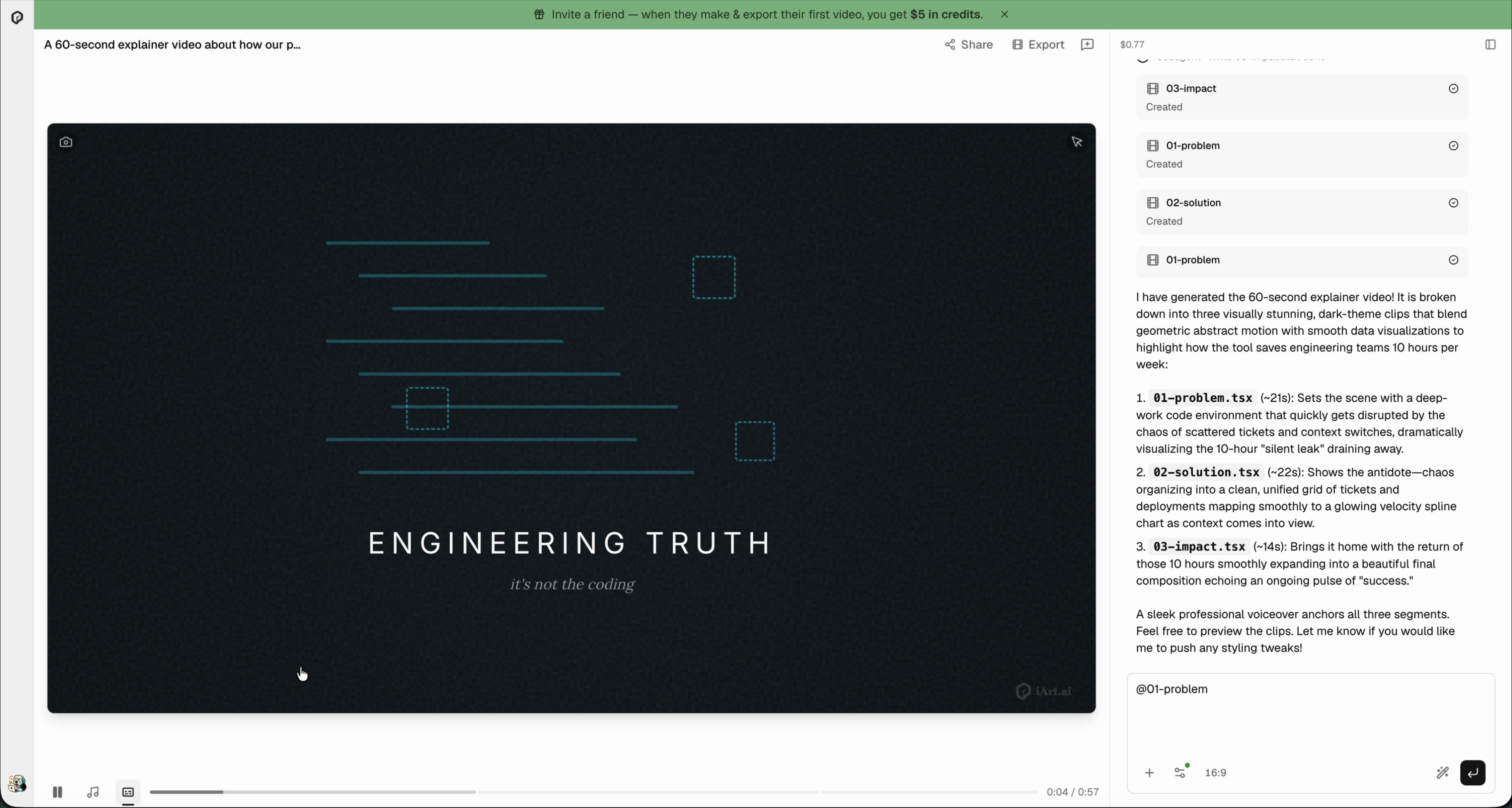
The AI interprets your description and produces a complete animated video — scene composition, data visualizations, kinetic typography, color grading, and transitions are all generated automatically. No storyboarding, no keyframing, no rendering queues.
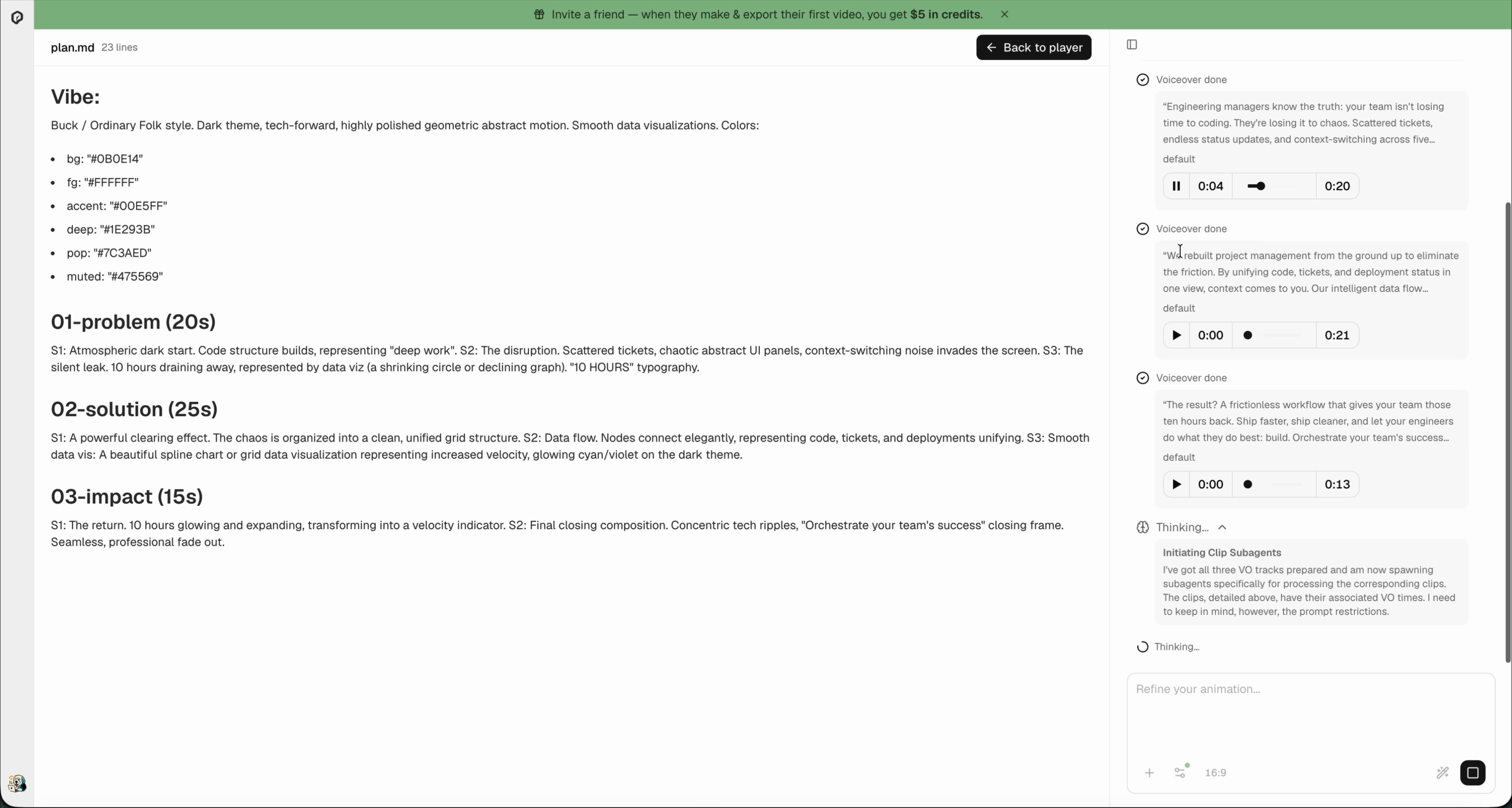
First, the AI writes a scene-by-scene script with voiceover narration. You can preview each scene's audio before the video renders.
Then it generates the full animation — 30-90 seconds from prompt to finished video.
Step 3: Review and Iterate
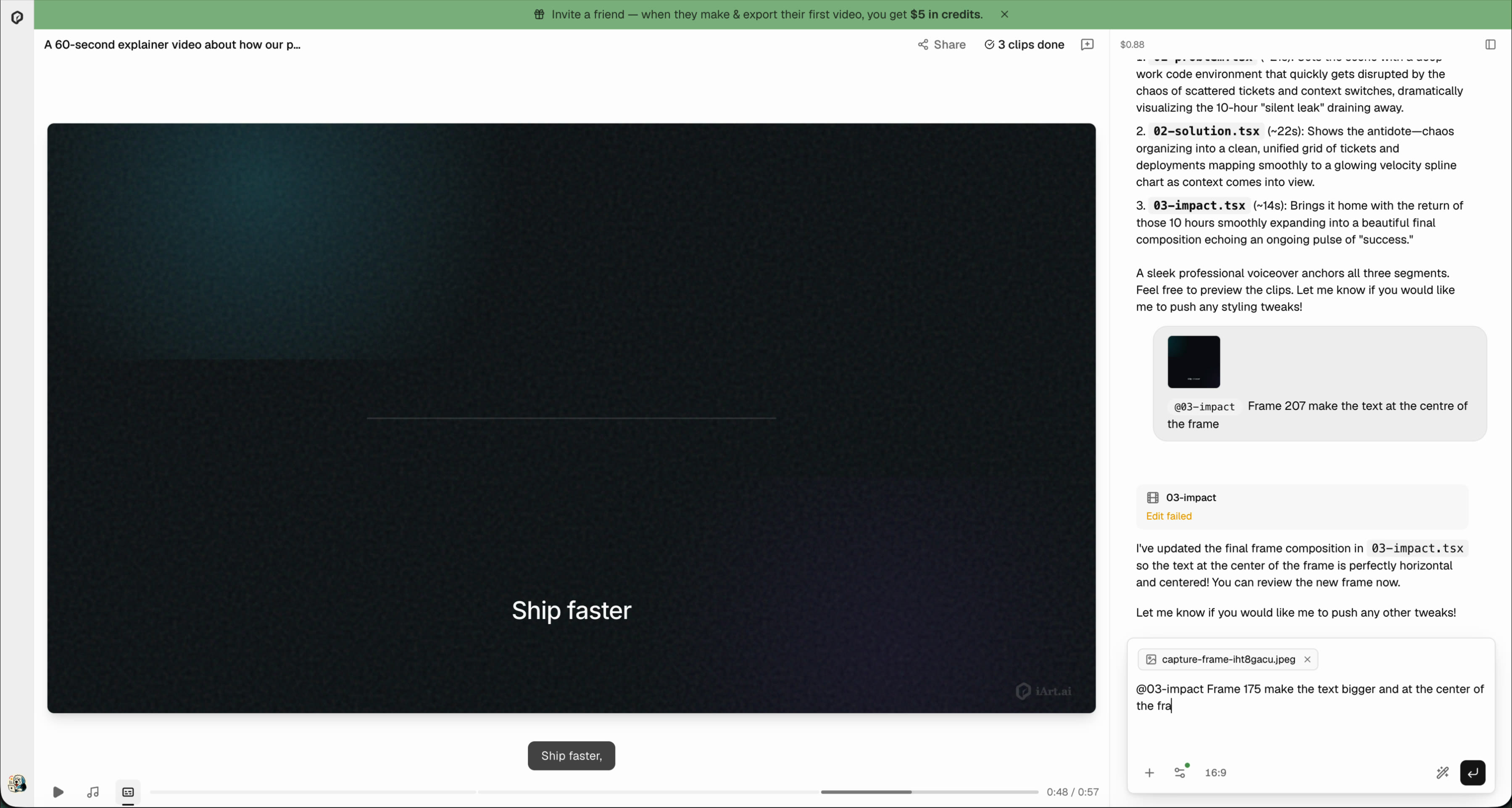
Unlike traditional production where revisions cost extra rounds and weeks of back-and-forth, AI generation lets you iterate freely. Not quite right? Just type what you want to change — adjust the layout, swap a scene, shift the tone, fix text contrast. Each iteration takes seconds, not days.
Step 4: Add Background Music
Select a background track from the built-in music library — Upbeat, Calm, Cinematic, Dark, and more. Music runs on a separate layer from narration, so switching tracks never triggers a re-render.
Step 5: Export and Share
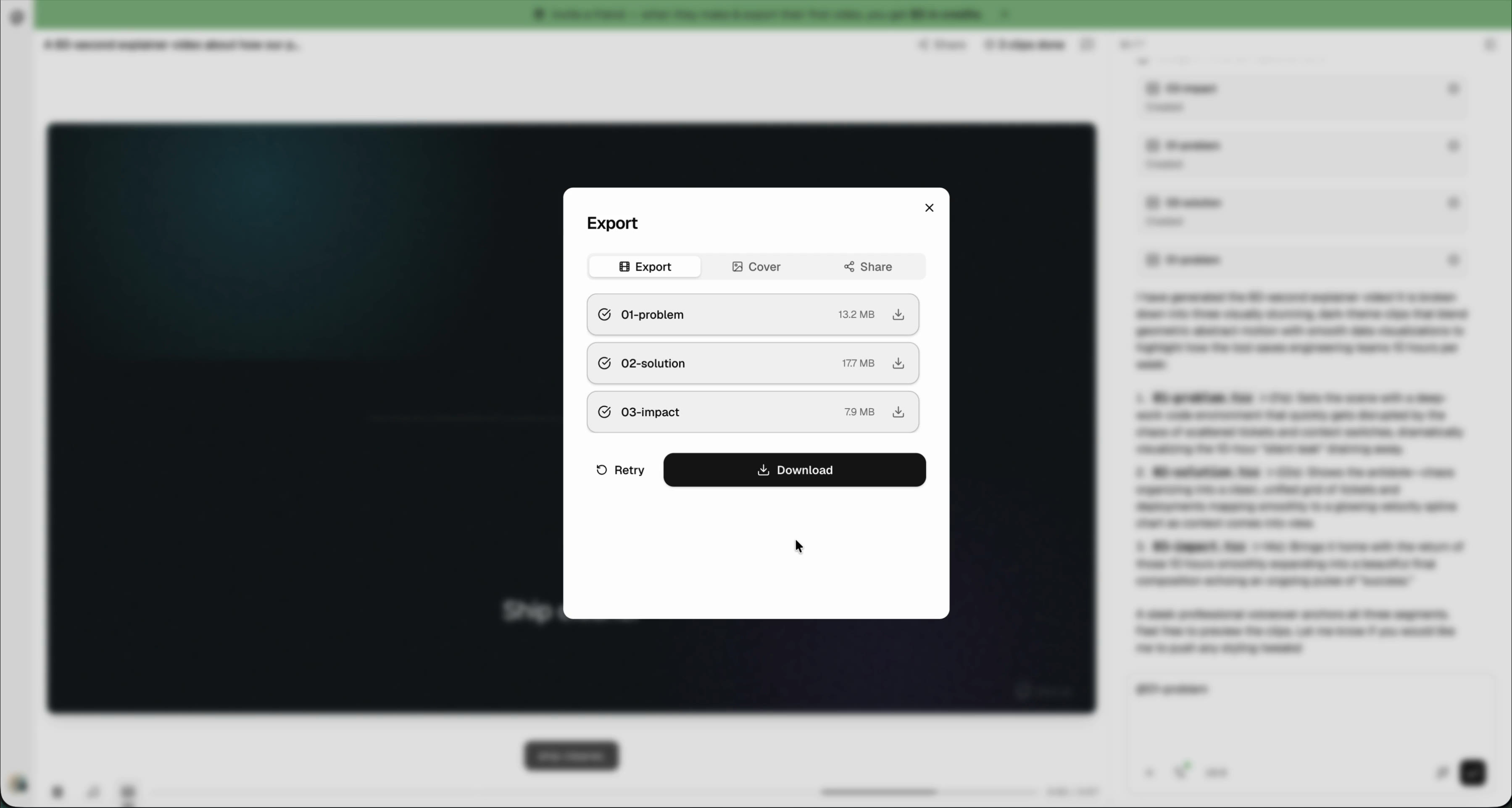
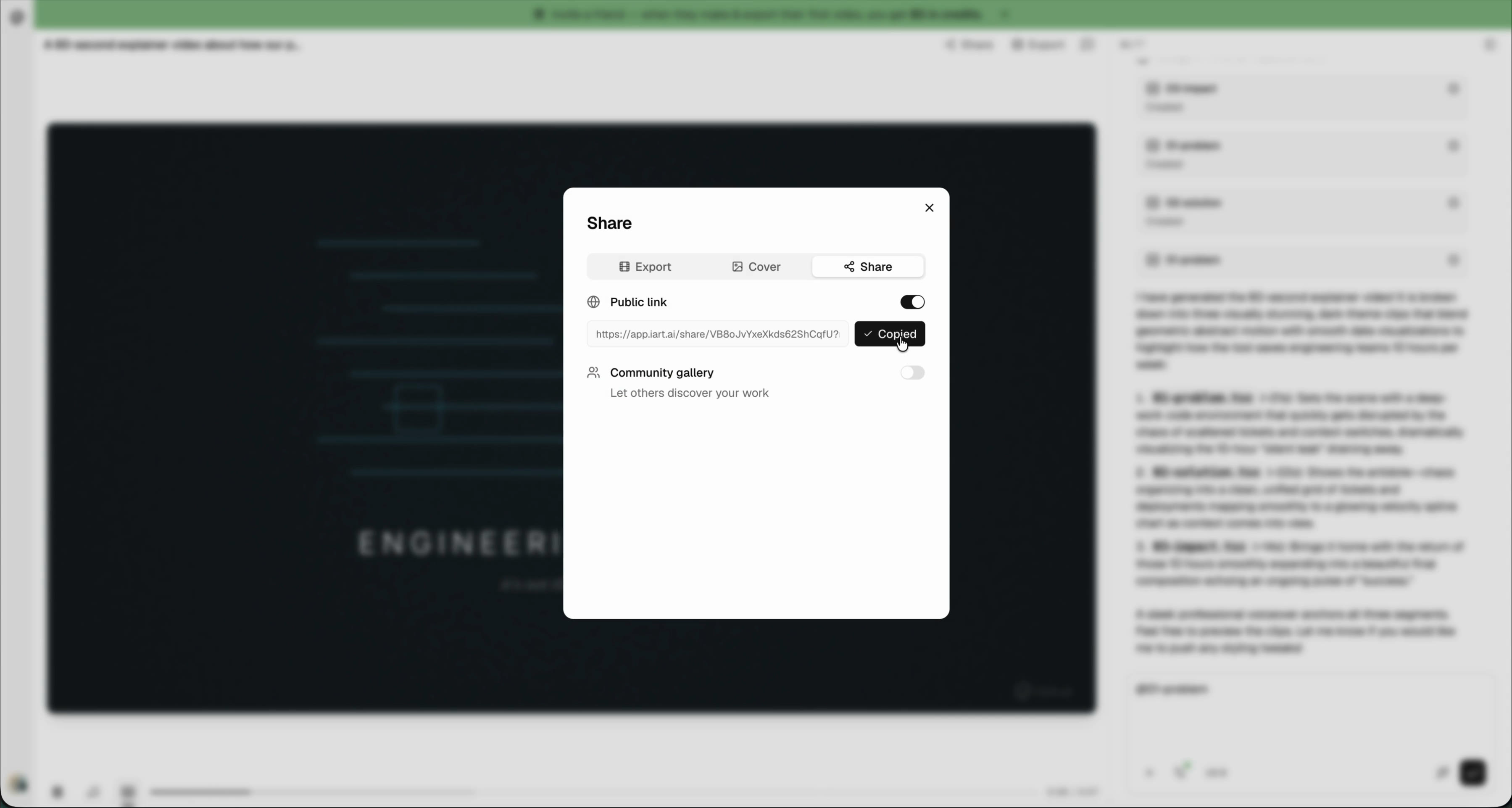
Export as MP4 — ready for YouTube, social media, your website, or a pitch deck. Choose resolution (720p, 1080p HD, or 4K) before exporting. No post-production needed. You can also generate a public share link to send to teammates or clients for review.
Try It Yourself — Free
Describe the concept, click generate, and see your explainer take shape in real time. $2 in free credits on every new account — no card needed.
Try iArt Free →Prompt Templates You Can Copy
Below are ready-to-use prompts for common explainer video types. Swap the bracketed placeholders for your own details and paste directly into iArt.
Product Feature Explainer
Create a 60-second explainer video about [product name]'s [feature].

Show how it works step by step:
1. [Starting state / problem]
2. [User action / trigger]
3. [Result / transformation]

STYLE: [Light/Dark] theme, [brand color hex], professional motion
graphics. Target audience: [who]. Keep on-screen text short.
Include voiceover narration.
Process or Workflow Explainer
Create a 45-second animated explainer showing how [process name] works.

Steps:
1. [Input / trigger] — what starts the process
2. [Processing] — what happens behind the scenes
3. [Output] — what the user gets

STYLE: Clean diagram style, smooth transitions between steps.
Use icons and simple shapes, not stock photos. Accent color: [hex].
Data or Concept Visualization
Create a 40-second explainer visualizing [concept/data point].

Show [specific data trend or concept] using animated charts, graphs,
or diagrams. Highlight [key insight] at the midpoint. End with
[conclusion/CTA].

STYLE: Dark background, bright data accents. Minimal text — let the
visuals tell the story. Professional, suitable for investor deck.
Onboarding or How-To Explainer
Create a 60-second onboarding video for new users of [product].

Walk through the first-time experience:
1. Sign up and land on [screen]
2. [First key action] — show what happens
3. [Second key action] — show the result
4. [Success state] — "You're all set"

STYLE: Friendly, light background, product UI mockups.
Voiceover tone: welcoming, not corporate.
Traditional vs AI: Side by Side
| Factor | Production Agency | Template Tool | AI (iArt) |
|---|---|---|---|
| Cost | $5,000-$50,000 | $49/mo | Free to start |
| Time per video | 3-6 weeks | 2-8 hours | 30-90 seconds |
| Revisions | 2-3 rounds, extra $ | Manual re-editing | Re-prompt instantly |
| Visual quality | Custom, high | Template look | Custom, professional |
| Scalability | Linear cost increase | Linear time increase | Unlimited |
Tips for Better Explainer Videos
- One idea per scene — Don't cram multiple concepts into one visual. Let each point breathe.
- Lead with the problem — The first 5 seconds should make viewers feel the pain your product solves.
- Use scene-by-scene beats — Structure your prompt with numbered steps and timestamps. The AI follows the structure precisely.
- Exclude what you don't want — Adding "no stock imagery, no particle effects, no generic backgrounds" forces the AI to stay specific to your concept.
- Pin your brand palette — Provide hex codes (e.g. #4F46E5) and the AI maintains color consistency from the first frame to the last.
- Respect attention spans — Social explainers perform best at 30-45 seconds. Landing page explainers can stretch to 60-90s, but front-load the hook.
FAQ
Do I need design experience?
No. If you can describe what you want in a sentence, you can make an explainer video. The AI handles design, animation, and timing.
Can I upload my own assets?
Yes. Upload images, logos, product screenshots, and brand assets directly into your project. The AI incorporates them into the animation — your logo in the intro, product screenshots in the demo section, brand colors throughout.
Does it generate voiceover?
Yes. The AI writes a script based on your prompt and generates professional voiceover automatically. You can choose from built-in AI voices, or clone your own voice by uploading a short audio sample. Preview and adjust the narration before the video renders.
Can I add background music?
Yes. Choose from a built-in library of background music tracks that match your video's tone — upbeat for product launches, ambient for corporate explainers, energetic for social content.
How much does it cost?
Free to get started. New accounts receive $2 in credits on signup — enough to create and share multiple explainer videos without entering payment info. Video export is available on paid plans. See pricing for plan details.
What aspect ratios are available?
Three options: 16:9 (YouTube, web), 9:16 (Reels, TikTok), and 1:1 (Instagram). Select before generating.
How long can the video be?
You control the duration in your prompt — 30 seconds, 60 seconds, or longer. Each segment is generated as a separate clip, then combined into the final video.
Can I use this for client work?
Absolutely. Every video you generate on iArt comes with full commercial rights — embed on your site, run as an ad, share on social, or include in a client deliverable.