How to Create a 3D Carousel Animation for Product Videos

A 3D carousel animation turns a set of product photos, app screenshots or portfolio images into a rotating collection. Bringing one card forward gives a featured product or project its own moment, while the surrounding cards establish the rest of the range. In iArt, you can build this as a short video from uploaded images and a motion prompt.
1. Choose six images and one featured card
Start with six images that belong together: products from one collection, screens from one app, or selected portfolio pieces. Give each a short title and decide which one deserves the close-up. The example uses six iArt artworks and features the blue Cyanotype card.
Use images with similar proportions and enough detail to stay sharp when enlarged. Keep labels outside the image, where they can remain readable as the card turns. For this example, the images are 16:9; the white card adds space beneath each picture for its title.
To follow along, save these six images and upload them together: Risograph, Cyanotype, Optical, Woven forms, Ink wash and Pixel art. You can replace them with your own images and titles.



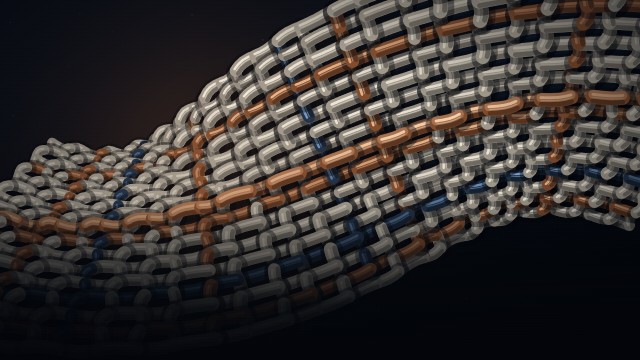
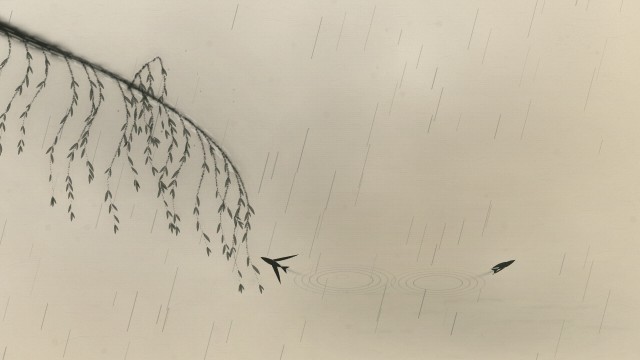
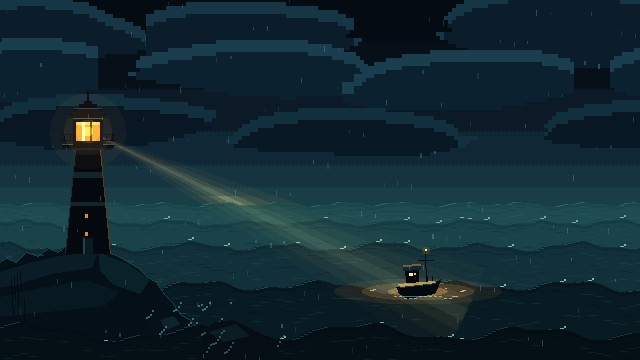
2. Generate the rotating carousel
Open iArt in Animation mode, choose 16:9 and upload the images. Select Haiku 5.5 for the initial scene and turn narration off. Paste the prompt below; replace the image names and titles when using your own collection.
Create a 15-second, 16:9 3D carousel video for iArt using the six supplied artwork images. Put each image on a white card with its short title below: Risograph, Cyanotype, Optical, Woven forms, Ink wash and Pixel art. Keep the images at their original proportions.

Arrange all six cards around a horizontal ring in a real-looking 3D space. View the ring from slightly above, so the rear cards appear higher and smaller and the front cards appear lower and larger. Each card faces outward from the ring. Show an opaque reverse side as it turns; cards must correctly hide the cards behind them. Use a pale blue-gray background, dark blue text and soft shadows.

Start with the whole ring already visible. Smoothly rotate it by a little more than half a turn over the first seven seconds, then stop with Cyanotype at the front. From 7 to 9 seconds, move that same Cyanotype card continuously out of the ring toward the viewer, raising it to the center and turning it to face the camera squarely. Keep the other five cards behind it. Do not cut or fade to a second copy. Keep the enlarged card fully inside the frame with readable text.

Hold the front card from 9 to 12 seconds. From 12 to 14.4 seconds, move it back along the same path to its place in the ring, and hold the final view. Keep all six cards solid, with correct perspective and overlapping order throughout.

Use the small brand label “iArt / Motion collection” at the top. Show “A new angle on your work.” during the ring rotation, and “Bring one idea into focus.” below the featured card during its hold. No narration or music.

Image filenames correspond to the titles above: riso.jpg, cyanotype.jpg, optical.jpg, silk.jpg, ink.jpg, pixel.jpg. Use these uploaded images directly.
The prompt defines a sequence with time to browse, focus and return. Keeping the camera slightly above the ring helps distinguish the front cards from the rear ones.
| Time | Movement | Purpose |
|---|---|---|
| 0–7 seconds | The ring rotates and slows to a stop. | Introduce the collection and bring the featured card forward. |
| 7–9 seconds | The featured card advances as the other cards recede. | Shift attention from the collection to one item. |
| 9–12 seconds | The featured card holds still. | Give the picture and title time to register. |
| 12–14.4 seconds | The whole composition returns to its ring arrangement. | Reconnect the featured item with the collection. |
| 14.4–15 seconds | The ring rests. | Finish on a stable composition. |
3. Make the focus transition move as a group
The most important refinement is the relationship between the featured card and the background. Moving only the front card can look like a picture being enlarged over a frozen scene. Give the other five cards a coordinated retreat so the focus move changes the whole composition.
Attach a short video showing the movement you want, then switch to Sonnet 5.5 for this refinement. You can download the motion reference for this example and attach it with the prompt below. Keep your six artwork images in the project; the reference supplies the movement to follow.
Refine this 15-second carousel to match the attached reference video. Focus on the transition around 7–9 seconds and the return around 12–14.4 seconds.

As Cyanotype moves forward and upward to the center, make the other five cards recede together in depth and become slightly smaller. Keep their ring arrangement, correct overlapping order and solid surfaces. Move the featured card on a continuous path, level it toward the camera, and let it grow through perspective to about half the frame width. Keep it fully inside the frame. No jump, duplicate card, crossfade, flip through the back or isolated flat scale-up.

Use the same smoothly eased timing for the featured card and the background movement. Arrive around 9 seconds, hold until 12 seconds, then reverse the entire movement so all six cards settle into the ring together by 14.4 seconds. Keep the opening rotation fluid and let it decelerate naturally.

Show each card’s artwork on its opaque reverse side with a subdued blue-gray tint. Keep the white rounded cards, short titles, soft shadows and pale blue-gray background. Make the main headline prominent during rotation and fade it out during the focus move. Keep the focus caption below the enlarged card without overlap. Reuse the uploaded images. No narration, music or extra scenes. Use the reference to guide the motion; do not insert the reference footage into the output.
As the featured card approaches the viewer, its increasing size should follow its movement through space. The other cards become smaller as they retreat. This is the same near-large, far-small relationship described in MDN’s perspective documentation. You can describe that relationship directly in your prompt without writing code.
For a quiet focus moment, allow the enlarged card to cover much of the ring. For a collection-first presentation, ask for a smaller featured card and enough room on both sides to keep neighboring items visible.
4. Bring the whole collection back together
The return should undo the focus move as a group. The featured card moves backward and down, while the other cards return toward their original depth. Their movements should settle together so the result feels like one continuous arrangement.
Watch the full sequence before exporting. Check both the outgoing and returning movement: a good close-up does not guarantee a natural transition into it.
| What looks wrong | What to ask iArt to change |
|---|---|
| The featured card suddenly jumps larger. | Keep the same card visible throughout a continuous forward-and-upward path, with gradual easing. |
| The other cards freeze during the focus move. | Make them recede on the same timing, then return together with the featured card. |
| Card backs are empty or show mirrored titles. | Show a correctly oriented, subdued version of the artwork on each opaque reverse side. |
| The close-up cuts off the image or label. | Reduce its forward distance or size and leave space around the complete card. |
| The caption sits on top of the card. | Place it below the card’s largest position, with a clear gap. |
| The return snaps into place. | Reverse the outgoing path and let foreground and background settle at the same time. |
When the preview is ready, export the MP4 and watch the downloaded video. Use it as a collection segment in a product promo video, or combine it with a UI morph animation to move from a product overview to a specific feature. To showcase a whole landing page, use the website flyover tutorial.
FAQ
How much does a 3D carousel animation cost in iArt?
This example used $0.0216 in credits for the initial Haiku 5.5 generation and $0.4031 for one Sonnet 5.5 refinement. Two 1080p exports cost $0.18, bringing the total to about $0.60. The images and motion reference were supplied; that total excludes creating those assets. Costs vary with the model, prompt and revisions. New accounts receive $2 in free signup credits, with no credit card required. MP4 downloads require a paid plan. See iArt pricing for current plan details.
Do I need 3D models or Blender?
No. This effect uses ordinary images on flat cards arranged in 3D space. Perspective, rotation, overlap and shadows provide the depth. A video showing a physical product from multiple angles would need suitable product views or a separate 3D asset.
Can I use product photos or app screenshots?
Yes. Upload clear images, give each one a short title and identify which card should move forward. Product photos with consistent lighting and screenshots with a similar crop make the collection easier to read. Keep the original image proportions.
Why does the featured card look pasted on?
A sudden size change or a stationary background can make the featured card look detached. Ask for a continuous forward-and-upward move with a gradual turn toward the camera, while the remaining cards recede on the same timing. Reverse both movements together when the card returns.
Is this an interactive website carousel?
The result is an MP4 video with a fixed sequence. It can illustrate a product collection in a launch video, portfolio or social post. A clickable or draggable website carousel needs an interactive component. For an interactive example, Motion’s Gallery component supports ring layouts and transitions into detail views.
Can I make a vertical Reel or Short?
Yes, but reframe the composition for a 9:16 canvas. A center crop can remove the side cards and their movement. Reduce the ring width, check the enlarged card against the top and bottom margins, and keep its title readable.