How to Create UI Morph Animations with AI

A button becomes a loading indicator, resolves into a checkmark, and opens into a chart. The viewer follows one object through the whole sequence. That is the idea behind this UI morph animation tutorial: show a small product interaction without cutting between unrelated screens.
We built the example in iArt using Haiku 5.5, then revised it twice. The first version clipped the chart labels. The next version fixed the layout but felt slow. The finished animation runs for eight seconds, with quicker transitions and a readable chart hold.
This walkthrough includes the prompts we used, what went wrong, and the timing changes that made the result more useful. Pulse, the analytics app in the example, is fictional; the signup numbers are sample data.
What you will make
The animation follows one short interaction: View report → loading → success → Weekly signups → View report. The central container changes its dimensions, corner radius and color. Its contents change as each state becomes relevant.
This format can illustrate a report loading, a payment confirmation, or a product feature in a launch video. The output is a video demonstration, not a functioning interface or an installable UI component. For this test, we used Animation mode, a 16:9 canvas and the Haiku 5.5 option shown in iArt on October 22, 2026. We requested no narration, music or generated footage.
Prepare three things before you start: the states you want to show, the exact text and data, and a simple visual direction. Our brief used an off-white background, dark UI and one accent color. The chart values were 24, 38, 31, 52, 46, 68 and 84, labeled Monday through Sunday.
1. Describe the object that stays continuous
Open iArt in Animation mode and choose your model. We used Haiku 5.5 throughout this example. We did not compare it with other models or measure the billed cost of the run.
The important part of the prompt is the relationship between the states: the same container changes shape. Asking for a button scene followed by a chart scene can produce a cut or a crossfade instead. Tell the model which object persists, what changes inside it and when the viewer needs time to read.
Here is the original prompt from our test. It intentionally preserves the fifteen-second brief so you can follow the revisions below.
Create a 15-second seamless UI morph animation for a fictional analytics app called Pulse, 16:9. One central dark rounded container continuously changes shape: 0–3s a button labelled “View report” with a cursor click; 3–5s the SAME container shrinks into a circular loading spinner; 5–7s it becomes a green success check; 7–12s it expands into a clean analytics card titled “Weekly signups”, with seven bars labelled Mon–Sun and values 24, 38, 31, 52, 46, 68, 84; 12–15s it smoothly returns to the original button, with identical first and last frames. Warm off-white background, near-black UI, emerald accent, crisp typography, restrained spring motion. The morph must be visibly continuous rather than separate scenes crossfading. Keep all labels readable, no text overlap, no clipping. No voiceover, music, stock footage, generated images or video. Build the animation directly.iArt produced a preview with the requested states. That established a useful starting point, but the instruction “no clipping” did not guarantee that the layout was correct.
2. Inspect the chart before judging the animation
At around ten seconds, the first preview cut off the chart at its bottom edge. The weekday labels were not visible. The shape transition existed, but the result did not communicate the data properly.
When checking a generated chart, compare every value with the brief and look for labels outside the container. Check both the stable chart and the frames where it expands or shrinks. A layout that fits at full size can still clip during a transition.
Our first follow-up identified the visible problem, preserved the data and asked for a color change in the same revision:
The preview at 10 seconds has a real layout bug: the bottom of the chart is clipped and the Mon–Sun day labels are not visible. Fix the chart layout so all seven values AND all seven weekday labels are fully inside the card with at least 24px bottom padding, throughout the 8–12 second chart hold. Also remove the empty-card pause before shrinking back: keep chart content visible until the morph starts, then fade it out during the shrink without clipping. Keep the same design, data, 15-second duration, and matching first/last frames. Change the accent from emerald to violet #7C3AED so I can verify chat editing too. No audio or generated media. Inspect frames at 9, 10, 11, 12, 13 seconds before finishing.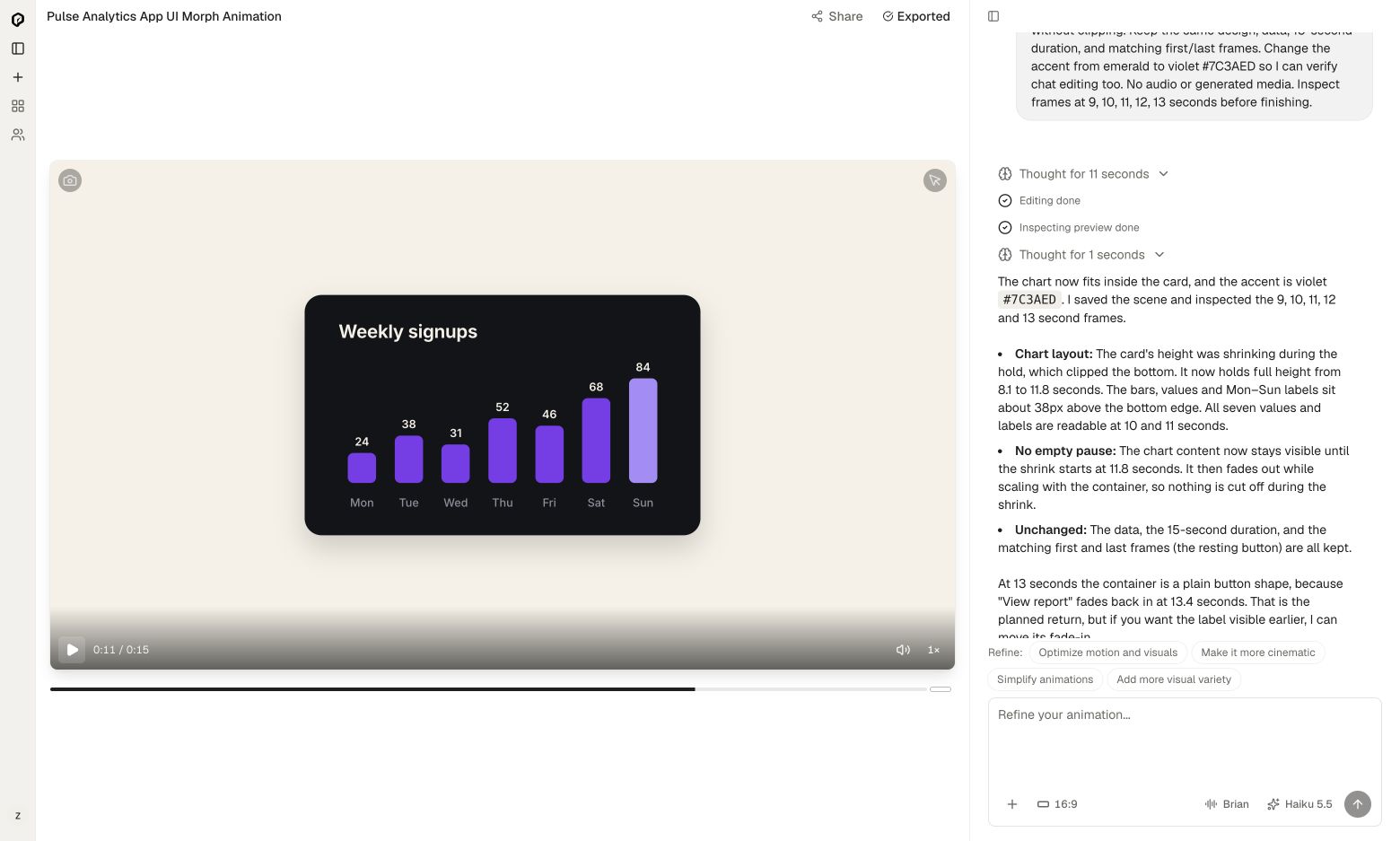
The revised preview showed all seven values and weekday labels, including Sunday’s 84. The color change also appeared. We could now evaluate pacing without a layout defect obscuring the result. For more chart-focused examples, see animated charts in iArt.
3. Shorten the transitions, not the reading time
The next feedback was simple: the transitions felt too slow. Our original brief had allocated several seconds to the early button, loading and confirmation states. The result spent too much time getting to the information.
We changed the scene duration from fifteen seconds to eight. More importantly, we gave different parts of the sequence different jobs: the transitions move quickly, while the completed chart stays still long enough to read.
| Time in the revised brief | Action | Purpose |
|---|---|---|
| 0–0.55 seconds | Button and cursor arrival | Establish the action without a long opening wait. |
| 0.55–0.90 seconds | Button shrinks into the loader | Respond immediately to the click. |
| 0.90–2.05 seconds | Loading, then confirmation | Make the status changes recognizable but brief. |
| 2.05–3.20 seconds | Container expands; bars and labels enter | Reveal the result in one connected movement. |
| 3.20–6.65 seconds | Full chart holds | Give viewers time to compare the seven values. |
| 6.65–8 seconds | Return to the button and settle | Close the sequence without a long empty-card pause. |
These timings are the brief for this small demonstration, not universal UI animation rules. A larger interface or more complex chart may need more reading time.
This is the timing revision we sent to the same project:
The user feedback is that transitions feel sluggish and disconnected. Retiming pass: shorten the entire animation to 8 seconds and actually change the scene duration (not player speed). Keep the violet design, exact chart data and fixed readable layout. Schedule: 0–0.55s resting button and quick cursor arrival; click at 0.55s, immediately morph button to loader during 0.55–0.90s; spinner 0.90–1.45s; morph to success check 1.45–1.70s, hold until 2.05s; expand same container to chart 2.05–2.50s; all bars and labels finish entering by 3.20s, using 40ms stagger and 300ms rise; hold full readable chart 3.20–6.65s; shrink to button 6.65–7.15s with content scaling/fading during the morph, restore button text by 7.15s; rest 7.15–8s and exactly match initial frame. Shape transitions should be 250–450ms with ease-out cubic and restrained settling, no long linear tween, no empty container pause, no repeated fade-to-blank between states. The cursor must visibly click and immediately trigger the morph. Keep no audio/media. Verify duration and frames at 0, 0.75, 1.2, 1.9, 2.3, 3.3, 6.8, 7.3, final; explicitly check no clipping or gaps.The updated player displayed an eight-second duration at normal playback speed. We checked the loader near one second and the completed chart around three seconds. The seven values and weekday labels remained readable.
Easing and duration address different parts of the problem. Duration controls how long the movement lasts; easing controls how progress changes within that time. If you want to understand the implementation, Remotion’s interpolation documentation explains mapping frame ranges to visual values, and its easing reference documents linear, cubic and ease-out functions. You can describe the intended timing in chat without writing those functions yourself.
4. Review the result at normal speed
A screenshot can confirm readable text. It cannot establish that movement feels smooth. Replay the sequence at 1× and check the moment of the click, the loader-to-check transition, the card expansion and the return to the button.
- Action and response: does the shape start changing when the cursor clicks?
- Continuity: can you follow the container between states, or does it disappear and get replaced?
- Reading: do all values finish entering before the chart hold?
- Return: does the content leave with the shrinking card, without a noticeable empty pause?
- Loop: inspect the end against the beginning, including the cursor and text. Asking for identical frames is not proof that the loop is seamless.
Our final preview is a basic, usable UI demonstration. It is not evidence that every prompt will produce polished motion on the first attempt. The timing revision also went through an automatic repair before producing a working preview. We did not perform a frame-by-frame smoothness measurement or independently verify the exact final-frame loop seam.
5. Export the version you actually reviewed
Once the preview is ready, open Export and choose a resolution. If you change the animation afterward, export the updated version rather than using an earlier render.
We exported the final eight-second version at 720p and embedded it at the top of this article. The web version uses H.264 video at 1280 × 720 and 30 fps, with no audio track. Review the exported file as well as the editor preview before sharing it.
To adapt the exercise, replace the sample app name, labels and numbers with your own, while keeping the state sequence short. For a longer feature story, continue with our guide to making a product launch video.
Build your own UI animation in iArt
FAQ
Do I need to write code to make this animation?
We created and revised this example through iArt’s chat interface. We did not manually edit the generated animation code. The useful work was specifying the states, checking the preview and describing concrete corrections.
Which model did you test?
We used the Haiku 5.5 option shown in iArt on October 22, 2026, for the first generation and both follow-up revisions. This was one project, not a comparison or reliability benchmark across models.
Why did the first version feel slow?
The fifteen-second brief gave the early states and transitions too much time for this simple interaction. We reduced the total duration to eight seconds, shortened the shape changes and retained a little over three seconds for reading the finished chart.
Does this create a real interactive product interface?
No. This example creates an animated video of an interface. The button, cursor and chart illustrate a product flow; they are not a working dashboard or a deployable UI component.
Can I reuse the prompt with different data?
Yes. Replace the sample labels and values, then inspect the result again. Longer labels, larger numbers or extra bars can require a different card layout and more reading time.