How to Add Animated Lower Thirds in OBS (Transparent, No Green Screen)

To add an animated lower third in OBS without a green screen, you need the lower third as a video with a transparent background: a WebM with an alpha channel. Add it to your scene as a Media Source, place it over your camera or gameplay, and show it whenever someone new is on screen. OBS reads the transparency on its own, so there is nothing to key out.
This guide covers the whole path: making the lower third (we use iArt's lower thirds maker, which writes each one to your prompt and exports a transparent WebM), the Media Source settings that matter, triggering it live, and what to do if you edit in Premiere, DaVinci Resolve or Final Cut instead.
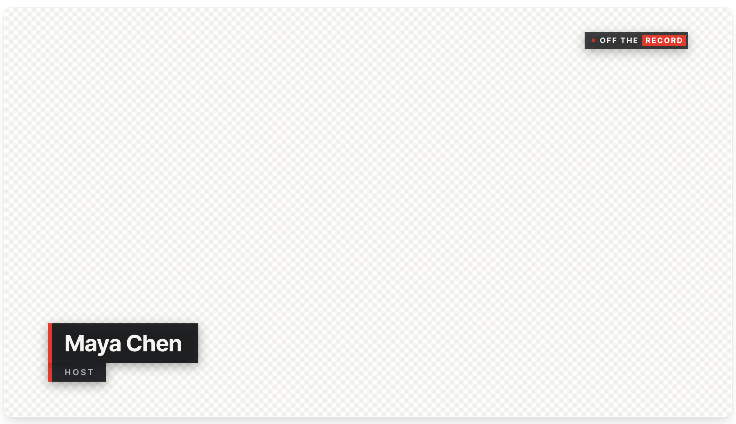
Left of the line: the transparent file iArt exports, shown on a checkerboard. Right: the same file over interview footage (free stock from Mixkit).
What you need
- OBS Studio. The Media Source plays .webm files, and its properties include alpha handling (OBS knowledge base).
- A lower third with real transparency. A WebM with an alpha channel is the simplest. An MP4 cannot carry transparency: it will show as a black box, or you would need a green-screen version and a chroma key filter.
Step 1: Make the lower third
Open iArt's Animation mode (this link opens it with the podcast prompt below filled in) and describe it in a sentence or two. Say three things: that it is a transparent overlay (or that it goes over your footage or stream), the exact name and title as they should read, and how long it holds. The agent, Claude Opus 5.5, draws the graphic in code, so the text is real type and spelled exactly as you wrote it.
The preview shows a checkerboard behind the graphic: everything you see as checkerboard will be see-through.
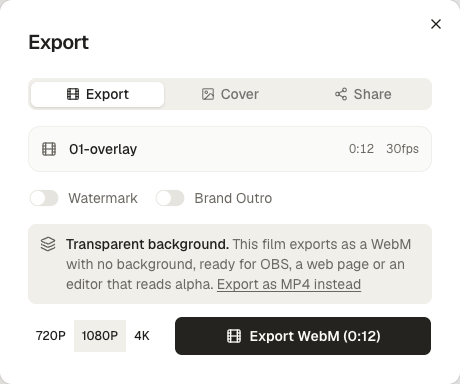
When it looks right, open Export. For an overlay the dialog says it exports as a transparent WebM; press Export WebM. Resolution follows your plan (exporting needs a paid plan; new accounts get $2 in free credits to make and preview a first one). The transparent export needs Chrome or Edge.
Want changes? Reply in the chat ("make the name bigger", "hold it two seconds longer", "use our brand blue #1668F2") and export again.
Step 2: Add it to OBS as a Media Source
- In the scene you stream from, click + under Sources and choose Media Source. Name it, for example "Lower third – host".
- Keep Local File checked and browse to your .webm.
- Leave Loop off, so it plays once and stops.
- Keep Restart playback when source becomes active on (the default), so it plays from the start every time you show it.
- Keep Show nothing when playback ends on (the default), so the frame is clean after the lower third leaves.
Make sure the source sits above your camera or game capture in the Sources list; OBS draws the list from bottom to top.
Step 3: Position it
The export fills the whole frame of your project (1920×1080 for a 16:9 film exported at 1080p), with the graphic already placed in the lower third and the rest transparent. If your OBS canvas is 1920×1080, it lines up as is. On any other canvas, select the source and use Edit → Transform → Fit to screen. You don't need to crop or move the graphic itself: it was drawn in the right place.
Step 4: Show it live
Click the eye icon next to the source to show it; it plays once and disappears. To do it without the mouse, open Settings → Hotkeys, find the scene, and set keys for Show and Hide for the source. Press Show when a guest starts talking, Hide after it has played, and it is ready for next time.
Several people in one stream
For a panel or an interview with guests, make one file per person, or one file with each name in turn, as in the podcast example above. One file per person is easier to run live: add each as its own Media Source in the same scene, name the sources after the people, and give each a Show hotkey. When the host introduces a guest, press that guest's key.
If you switch between several camera scenes, add the lower thirds to a separate scene that holds only the overlays, and add that scene as a source in each camera scene. You set up the hotkeys once, and the lower thirds sit on top whichever camera is live.
Troubleshooting
- A black box behind the graphic. The file has no transparency, usually because it is an MP4. Export it as WebM. In iArt, the dialog's "Export as MP4 instead" is for when you want a normal video; switch back with "Export a transparent WebM".
- Edges look wrong or the transparency flickers. Some GPU decoders handle alpha WebM imperfectly. Turn off Use hardware decoding when available in the Media Source properties.
- It shows the last frame forever. Turn on Show nothing when playback ends.
- It doesn't restart when shown again. Turn on Restart playback when source becomes active.
Editing instead of streaming? Premiere, Resolve and Final Cut
Chrome, Edge and OBS read WebM transparency, but Premiere Pro does not read WebM alpha, and video editors generally expect ProRes 4444 for footage with transparency. Converting keeps the alpha. With ffmpeg installed, run:
ffmpeg -c:v libvpx-vp9 -i lower-third.webm -c:v prores_ks -profile:v 4444 -pix_fmt yuva444p10le lower-third.mov
Then import the .mov and put it on the track above your footage. We tested this command on our own exports: the .mov keeps the transparent background.
Four more lower thirds to start from
Each of these was made from the prompt under it and exported as a transparent WebM. The footage behind them is free stock, there only to show the transparency.
Twitch stream: neon, over gameplay
Shown as the exported file: everything on the checkerboard is see-through.
Animated lower thirds for my Twitch stream. My name "PixelPilot" with "Live · Speedrunning Hollow Knight" under it, slides in, holds a few seconds, slides out. I'll put it over my gameplay in OBS. Neon, punchy. About 10 seconds.
A slash of cyan, a glass name plate and a colour-split flicker on the name. Silent, as overlays usually are, since your stream has its own audio.
Interview: broadcast news style
Broadcast news-style lower third on a transparent background for a company interview video: "Dr. Lena Park" / "Chief Scientist, Helio Labs", plus a small "LIVE" tag and a location "San Francisco". Sharp, corporate, blue. 8 seconds.
A blue accent bar, a white name plate, a LIVE chip with a pulsing dot and a location tag. Sharp and corporate.
Documentary: a quiet name title
Shown as the exported file: everything on the checkerboard is see-through.
Minimal documentary-style name title to overlay on my interview footage, transparent: "Tomás Rivera" and under it "Beekeeper, 30 years". Thin serif, a hairline that draws on, elegant and quiet, like a Netflix documentary. 7 seconds.
A hairline draws on and the name rises through it in a light serif. A faint dark backing keeps it readable over bright shots.
Church livestream: speaker and scripture
Lower thirds for our Sunday livestream, transparent so it sits over the camera feed. First the speaker: "Pastor Grace Owens" with "Sermon series: Rooted", then a scripture reference "Psalm 1:3". Warm and calm, nothing flashy. About 12 seconds.
Two cards in the same place: the speaker and sermon series, then the scripture reference. Warm and slow.
FAQ
Does OBS support transparent video?
Yes. The Media Source plays .webm files and reads their alpha channel, so a WebM exported with a transparent background shows only the graphic. MP4 has no alpha channel, so an MP4 lower third needs a green background and a chroma key filter instead.
How do I make an animated lower third with a transparent background?
Describe it in iArt's Animation mode, say it is a transparent overlay, and give the exact name and title. It previews on a checkerboard and exports as a transparent WebM (Chrome or Edge, paid plan).
Can I use the same file in Premiere Pro or DaVinci Resolve?
Convert it first. Premiere does not read WebM alpha, and editors generally expect ProRes 4444 for transparency. The ffmpeg command in this guide converts the WebM to a ProRes 4444 .mov and keeps the alpha.
How long should a lower third stay on screen?
Long enough to read the name and title twice without hurrying, which for a short name is a few seconds, plus the animation in and out. Longer titles need longer holds.
Can I change the name later?
Yes. Reply in the chat with the new name or title and export again. The file is a video, so each version is its own export.
Is it a live graphic with a control panel?
No. It is a video file that plays once each time you show it. For names that change every few minutes, make one file per person and trigger each with a hotkey.
Make your first one in iArt's lower thirds maker, or start from a prompt above. For what a lower third is and the conventions behind it, see What is a lower third?