iArt vs Canva: A Canva Alternative Built for Motion Graphics

Canva vs iArt: the short version
Canva and iArt both put motion on the screen, but they're built for different jobs. Canva is a graphics-design suite where animation means applying a preset effect to an element or letting AI pick one for the whole page. iArt is an AI motion-graphics generator: you describe the animation you want in plain language and it writes the actual animation code from scratch, then renders it to video. If you live in templates and need a quick animated social post, Canva is hard to beat. If you need real motion graphics — kinetic typography, an explainer, an animated data sequence — iArt is the tool that actually produces them from a prompt.
Canva vs iArt at a glance
| Canva | iArt | |
|---|---|---|
| Primary purpose | Graphic design suite (social, docs, presentations) with built-in animation | AI motion-graphics generator |
| How you animate | Select an element, hit Animate, pick a preset; or let Magic Animate choose one | Describe the animation in words; AI writes custom motion code and renders it |
| Custom motion | Drag a motion path and set a speed; otherwise preset library | Full control by prompt — “stagger by word,” “blur in,” “slower” — then refine |
| Animation length | Max 10 seconds per animation; up to 50 animations per design | Multi-scene compositions; no 10-second-per-animation cap |
| Kinetic typography | Preset text effects (Typewriter, Roll, Bounce…) | Custom kinetic typography from a prompt |
| Export formats | MP4 and GIF | MP4 |
| Template library / photo editing | Massive — millions of templates, full design suite | Not a design suite; focused on generated motion |
| Best for | Social posts, presentations, quick animated graphics | Explainers, kinetic typography, animated titles, motion graphics |
| Pricing | Free plan; paid Pro and Business (Business from $20/user/mo) | Free to start ($2 in credits on signup) |
Canva capability details from the Canva Help Center (verified June 2026). Canva ships new features often — figures reflect that date.
What Canva is genuinely great at
Credit where it's due. Canva is one of the best design tools in the world for non-designers, and its animation is real and useful:
- One-click animation on anything. Select text, a shape, or a photo, hit Animate, and choose a style — fade, rise, pan, and more. Magic Animate will even pick an animation for the whole page with AI (Canva Help Center, 2026).
- Preset text effects. Named text animations like Typewriter, Roll, and Bounce give you a quick kinetic look without touching a timeline.
- A whole design suite around it. Millions of templates, photo editing, brand kits, and GIF export — Canva does far more than animation.
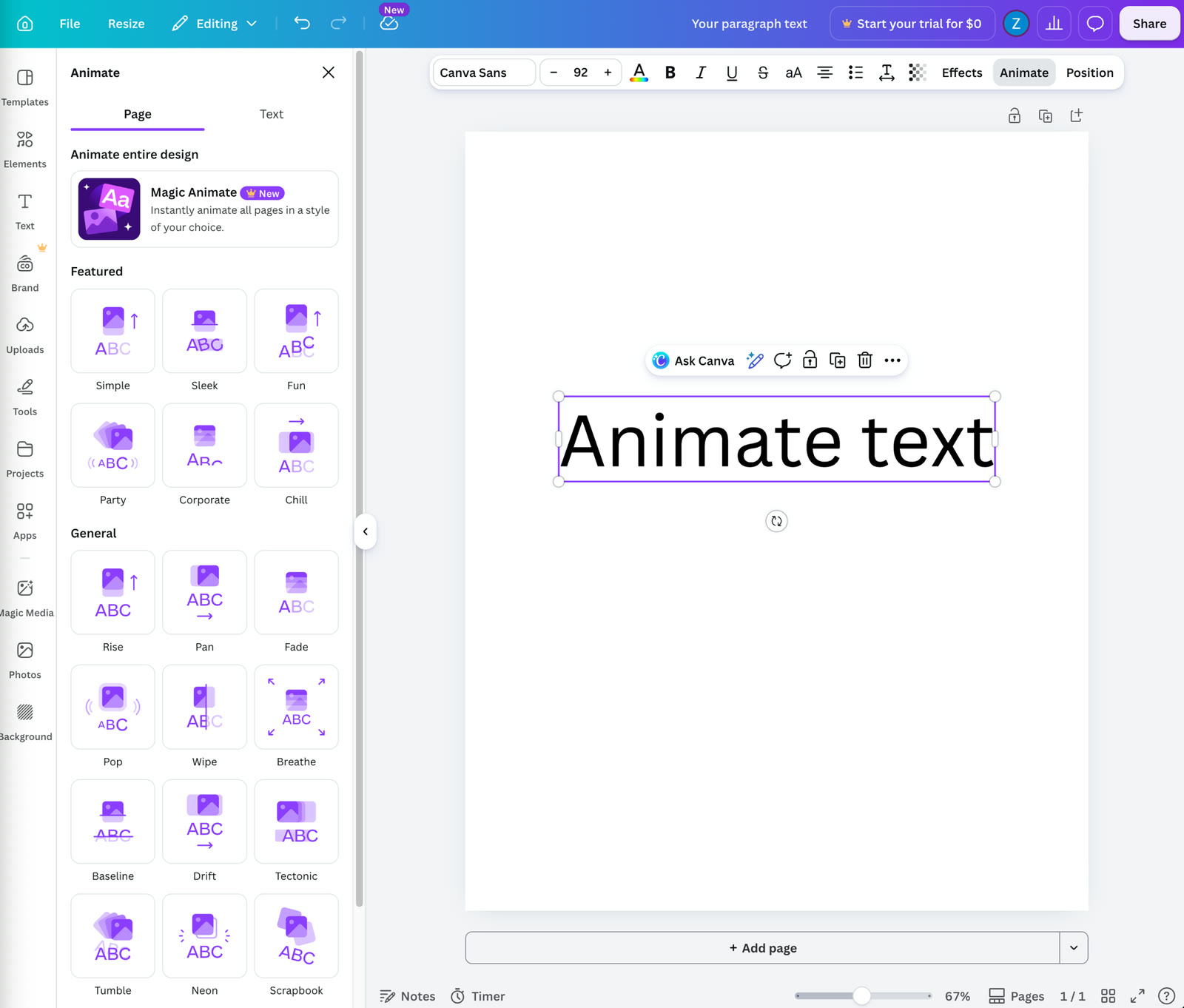
Magic Animate (a Canva Pro feature) applies an AI-chosen animation style — Simple, Sleek, Fun, Corporate — to your whole design. It's smart preset selection, not motion generated from your own description.
For a birthday post, an Instagram story, or an animated slide, that's exactly enough. The question is what happens when you need more than a preset.
Where Canva stops: real motion graphics
Canva's animation model is apply an effect to an element. You select your text, open the Animate panel, and choose from a grid of named presets — Typewriter, Roll, Bounce, Ascend, and more. That's powerful for design, but it has edges that matter the moment you want motion graphics:
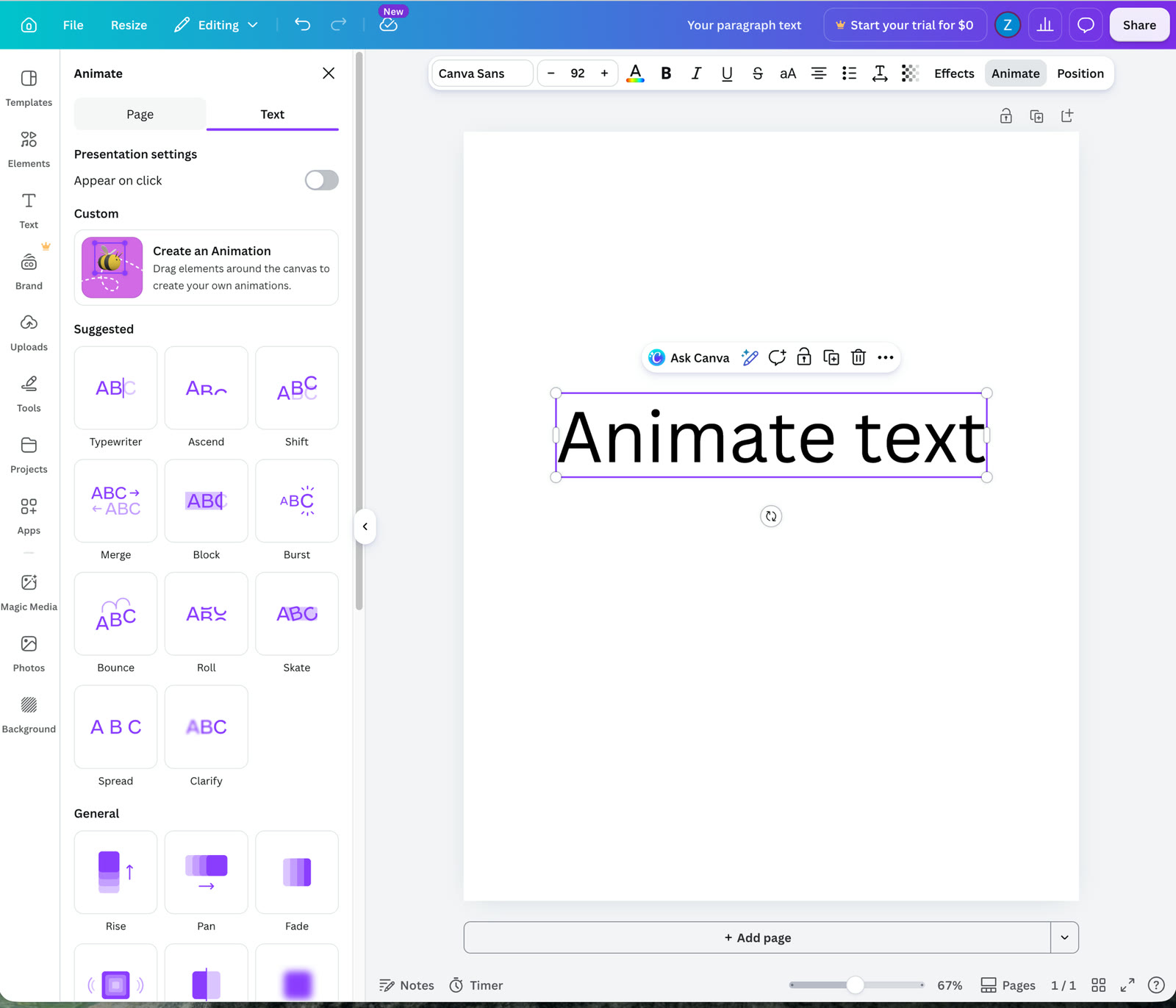
Canva's text animation panel (June 2026): you choose from a preset grid, or use “Create an Animation” to drag a motion path (Canva Pro). There's no per-word timing or custom easing to direct.
- Presets, not direction. You pick from the grid or drag a single motion path. You can't say “have the headline wipe up word by word on an ease-out curve, then the subhead blurs in 200ms later.” The choreography lives in your head, not in the tool.
- The 10-second ceiling. Each animation maxes out at 10 seconds, with up to 50 per design (Canva Help Center, 2026) — fine for a loop, limiting for a sequenced explainer.
- Template gravity. Output tends to look like the template it came from. Distinctive, on-brand motion design is hard to reach from a preset menu.
None of this makes Canva bad — it makes it a design tool with animation, not a motion-graphics engine.
What iArt does differently
iArt starts from the opposite end: you describe the animation, and an AI agent writes the actual animation code — real, code-driven motion built from the same primitives a motion developer uses (timed transforms, springs, custom easing) — then renders it to video. There's no preset to apply to each element; the whole scene is generated to your description. It's motion graphics written to order, not an effect picked from a menu.
The clip above was generated from a prompt — word hits, scale emphasis, and a resolve line, none of which is a Canva preset. With iArt you can:
- Direct the motion in words. “Kinetic typography, each word punches in on the beat, last word in the accent color.” The AI builds it; you didn't pick a preset.
- Refine by prompt. “Slower,” “stagger by letter,” “add a blur-in” — it adjusts without starting over.
- Go past 10 seconds. Sequence multiple scenes into a full explainer or title sequence.
It's closer in spirit to After Effects than to a design app — see our After Effects alternative — but driven by a prompt instead of a timeline.
Which should you use?
This isn't winner-takes-all. The honest split:
- Use Canva for social graphics, presentations, and quick animated posts where a preset effect and a template are exactly right — and when you need GIF export or the full design suite.
- Use iArt when the animation is the deliverable: kinetic typography, an explainer, animated titles, or data motion you want generated from a description and exported as MP4.
Plenty of people use both — design the static asset in Canva, generate the motion piece in iArt.
Make Motion Graphics from a Prompt
Describe the animation you want and get an editable, custom motion-graphics clip in minutes. Free to start.
Try iArt Free →FAQ
Is iArt a full replacement for Canva?
No — and it doesn't try to be. Canva is a complete design suite; iArt is focused on AI-generated motion graphics. If your work is mostly static design with occasional animation, stay in Canva. If you need custom motion graphics from a description, iArt is purpose-built for that. Many people use both.
Can Canva make kinetic typography?
Canva offers preset text animations like Typewriter, Roll, and Bounce, which give a kinetic look quickly. What it doesn't do is let you direct custom choreography — per-word timing, specific easing, sequenced emphasis. For that, an AI generator like iArt produces kinetic typography from a prompt.
What can Canva animate, and how long can it be?
Canva animates text, shapes, photos, and whole pages via preset effects or Magic Animate. Each animation can be up to 10 seconds long, with a maximum of 50 animations per design, exported as MP4 or GIF (Canva Help Center, 2026).
Does iArt export GIF like Canva?
Not currently — iArt exports MP4. Canva supports both MP4 and GIF. If you specifically need a looping GIF, that's a point for Canva today.
How much does iArt cost?
It's free to start: every new account gets $2 in credits on signup, no credit card needed, and a single animation costs a fraction of one credit. See pricing for plan details.
How does Canva compare to other tools for creating animated content?
Canva sits at the template end of the spectrum: preset animations applied to static designs — fast for casual social posts, limited for directed motion. Dedicated tools like After Effects or Cavalry offer full choreography control at the cost of a learning curve, video editors like CapCut animate text with preset lists, and AI generators like iArt create custom motion graphics from a written description. We compared eight tools hands-on in our AI motion graphics roundup and bench-tested the free After Effects alternatives.