How to Make a Logo Animation with AI in a Few Minutes

Why Logo Animation Matters
A static logo is a business card. An animated logo is a first impression. Whether it's a website intro, a YouTube bumper, or a social media profile, a moving logo grabs attention and signals professionalism. The problem: traditional logo animation requires After Effects skills and hours of keyframing. AI changes that — the dedicated logo animation maker turns your SVG into a logo reveal in minutes.
What You Need
Just your logo as an SVG file. If you only have a PNG or PDF, convert it first — SVG preserves clean vector paths that the AI can animate element by element, and a vector file renders at any size without loss of quality (MDN). Most logo designers deliver SVG by default.
Step 1: Upload Your Logo and Describe the Style
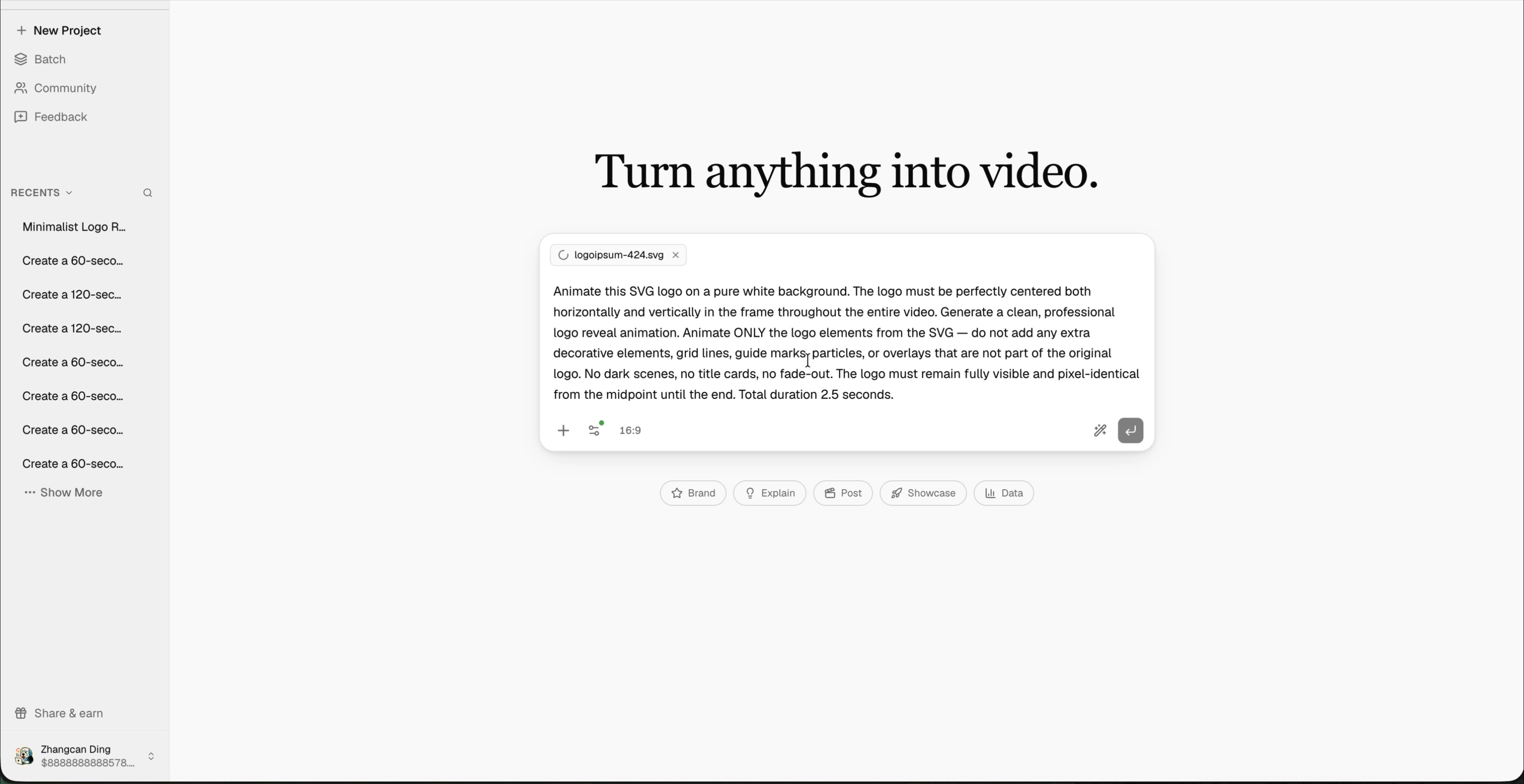
Open iArt.ai, upload your SVG, and write a prompt describing the animation style you want. Be specific about the feel: "clean and professional," "playful bounce," "elegant fade-in," or "particle reveal." Mention any constraints — background color, duration, whether the logo should stay centered.
Step 2: AI Generates the Animation
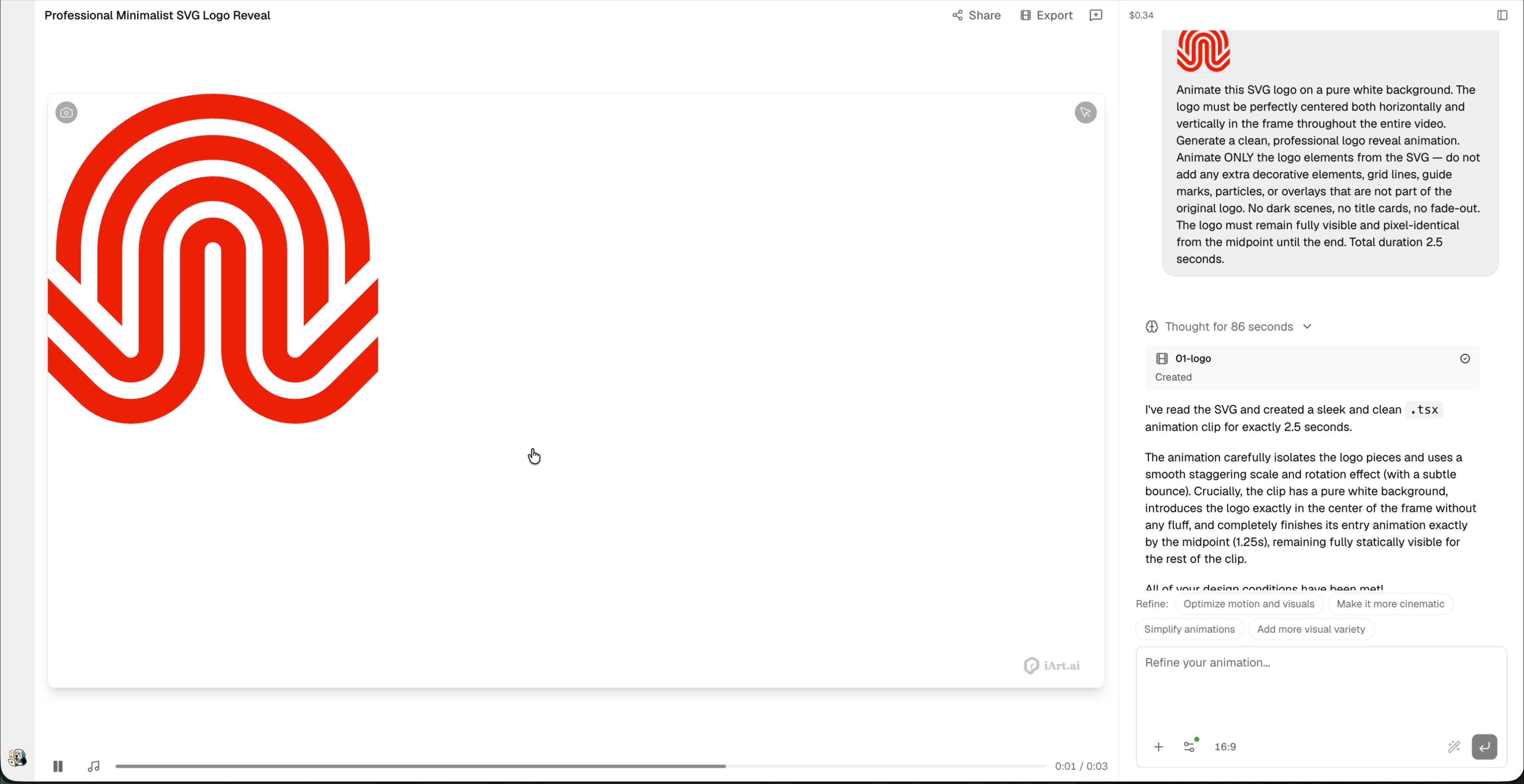
The AI reads your SVG structure — paths, groups, colors — and builds a motion graphics animation from scratch. It isolates individual logo elements and applies staggered keyframe animation: scale, rotation, opacity, position. The entire generation takes about two to three minutes.
Step 3: Refine with a Prompt
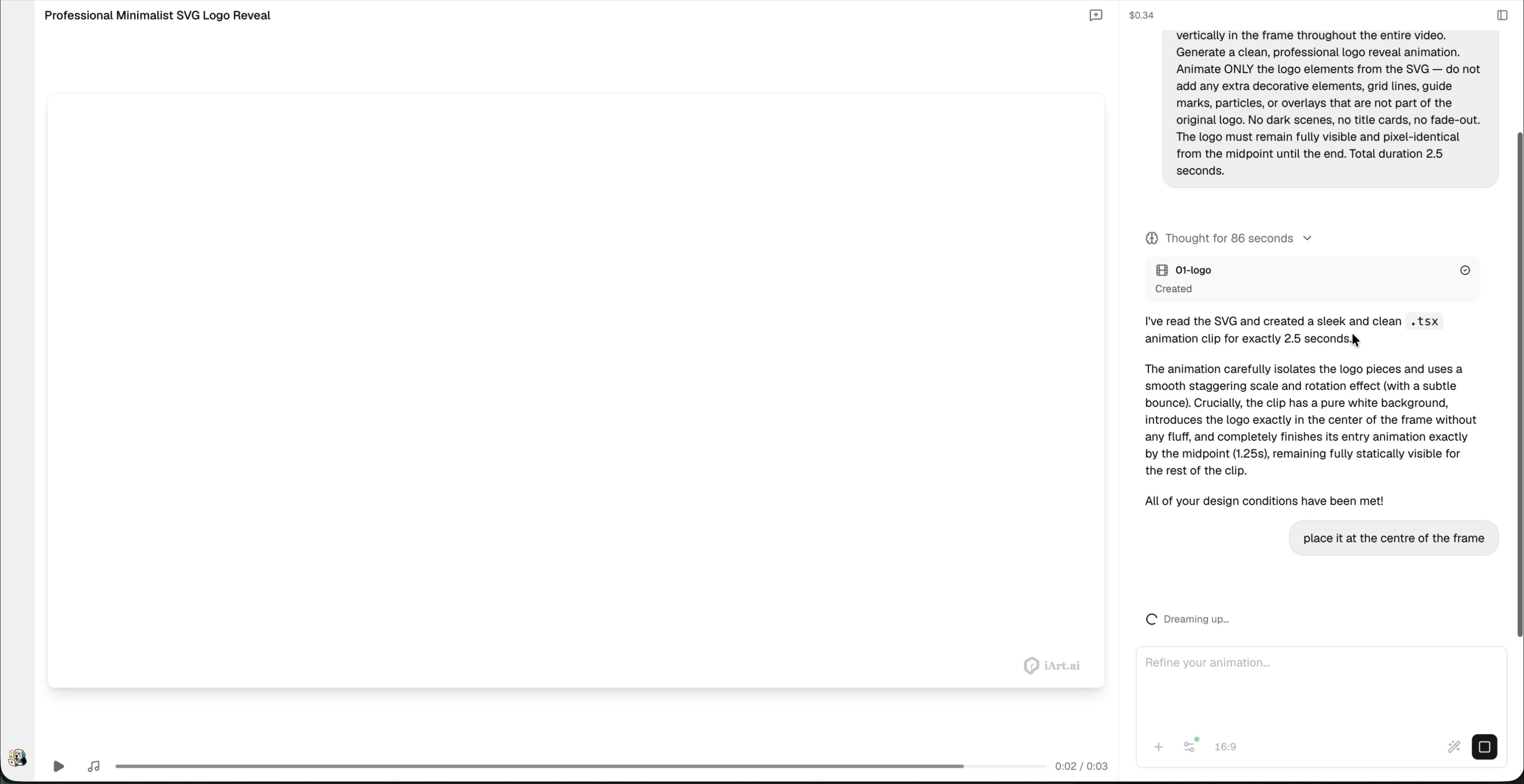
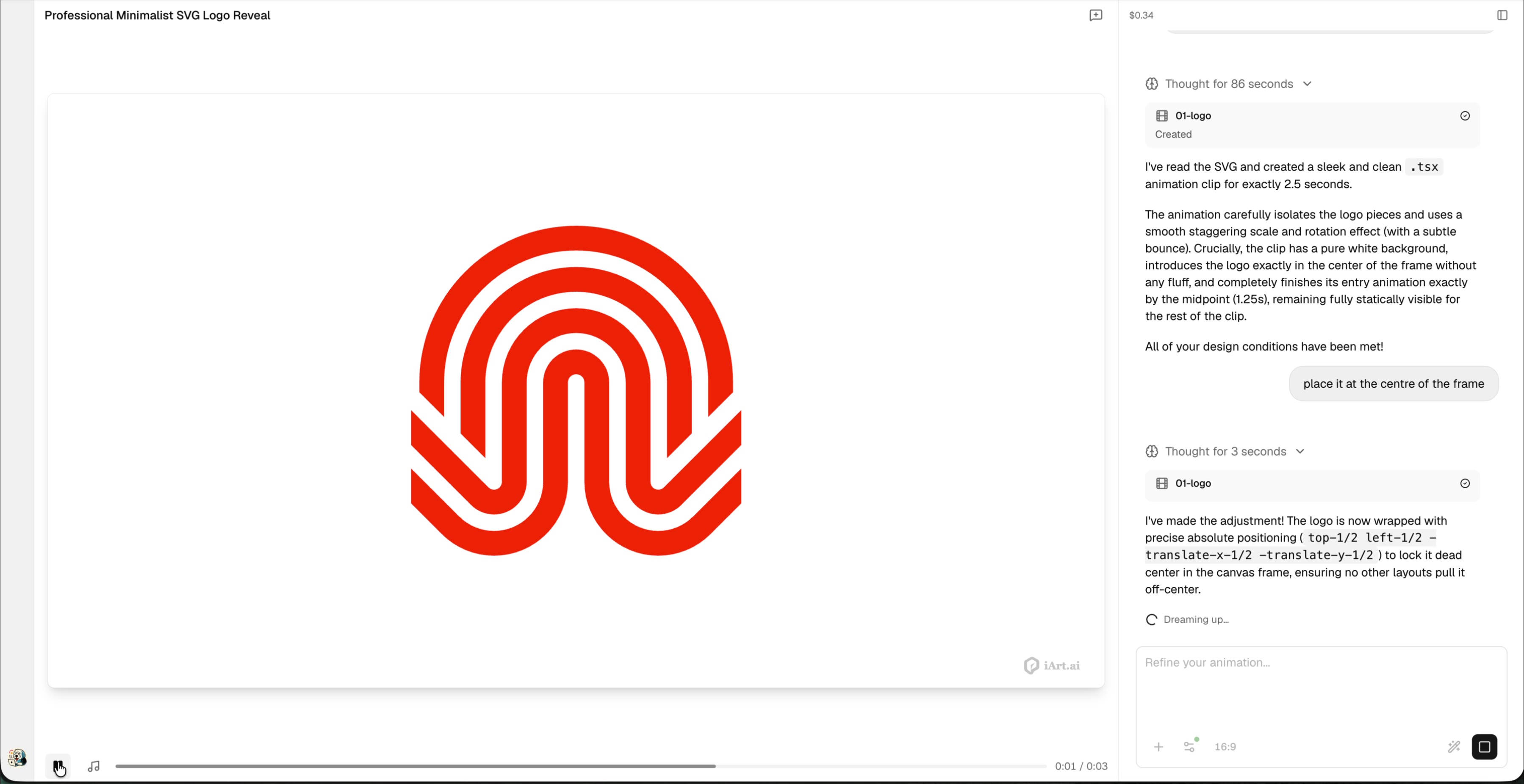
Not perfect on the first try? Just type what you want to change. "Make it slower," "center the logo," "add a subtle bounce at the end" — the AI adjusts without regenerating from scratch. In this example, a single prompt moved the logo to dead center of the frame.
Step 4: Share
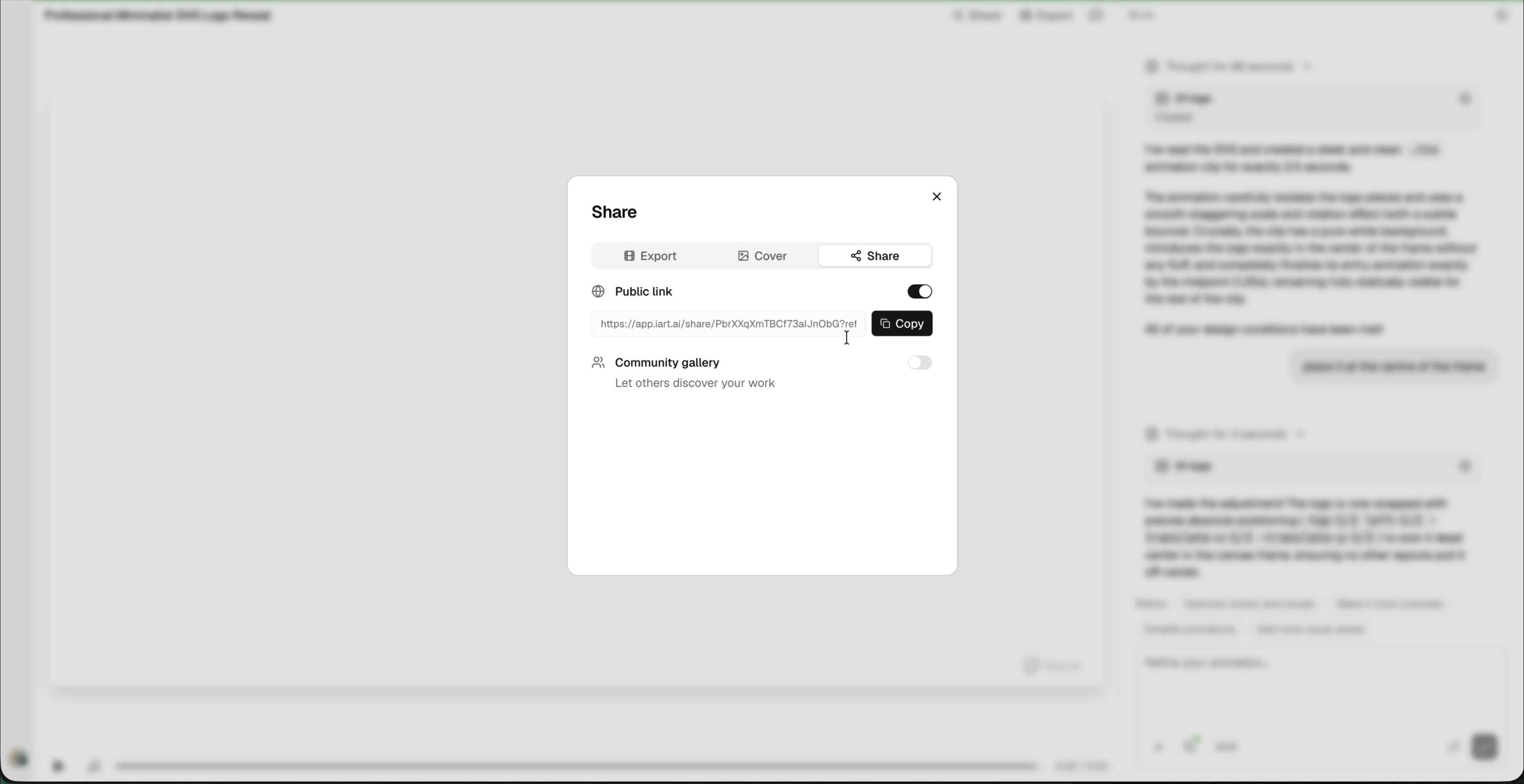
Generate a public share link to send the animation to your team or client for review — no account needed to view. Toggle community gallery if you want others to discover your work.
Step 5: Export
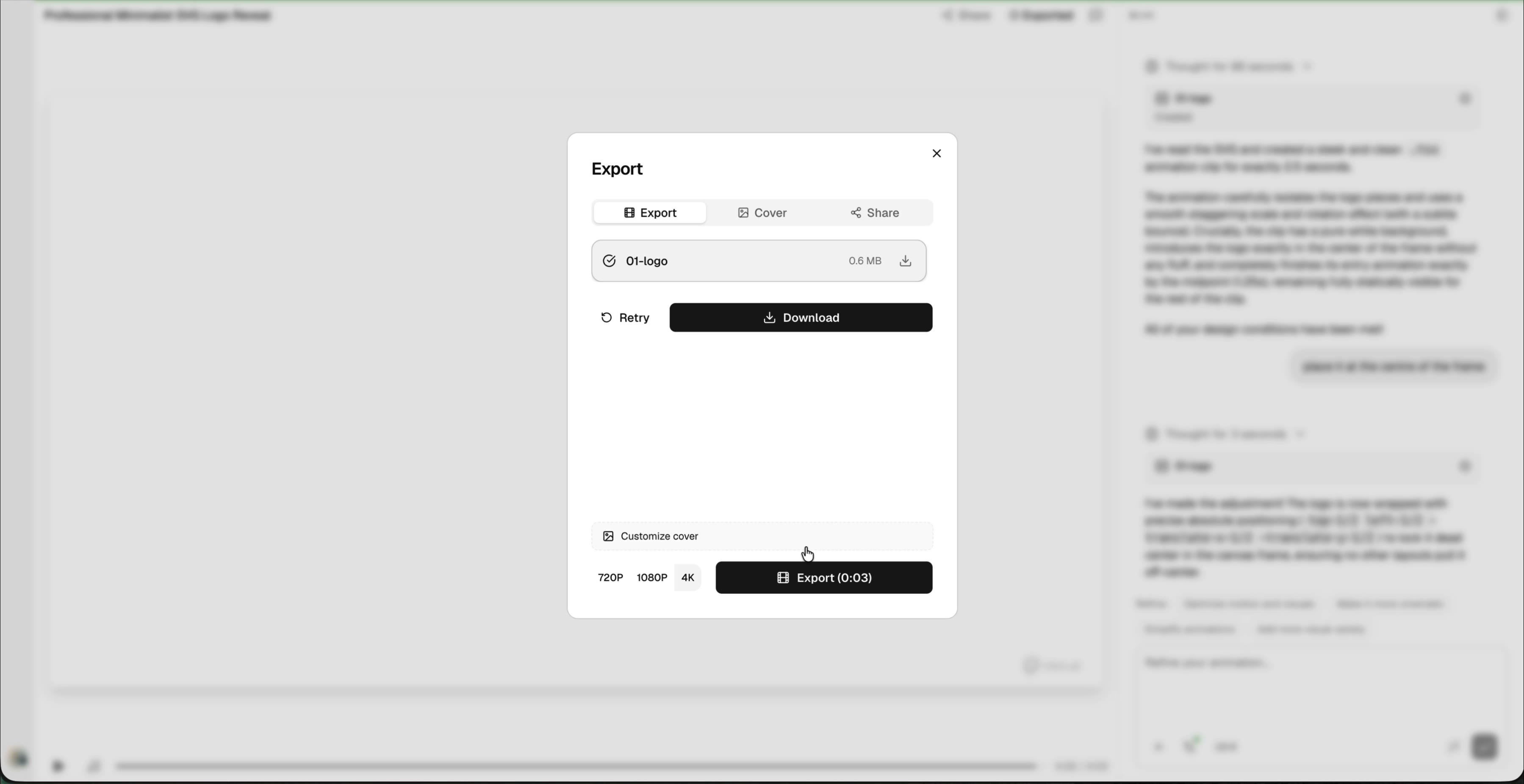
Export as MP4. Choose resolution (720p, 1080p, or 4K) and hit download. The file is ready to drop into your website, YouTube intro, pitch deck, or social profiles — MP4 with H.264 is also the container and codec YouTube recommends for uploads (YouTube Help).
Animate Your Logo Now
Upload your SVG, describe the style, get a professional logo animation in a few minutes. Free to start.
Try iArt Free →Tips for Better Results
- Use clean SVGs — Remove unnecessary groups, flatten transforms. The simpler the file, the better the animation.
- Specify duration — Logo animations for intros are typically 2-4 seconds. Social media bumpers can be shorter — YouTube's bumper ad format, for reference, is capped at 6 seconds (Google Ads Help).
- Describe what NOT to do — "No particles, no grid lines, no extra decorations" keeps the output focused on your actual logo.
- Iterate fast — Don't overthink the first prompt. Generate, review, refine. Each iteration takes a minute or two.
FAQ
Can I upload a PNG instead of SVG?
SVG works best because the AI can animate individual paths and elements. PNG is a flat image — it can still be animated (scale, rotate, fade) but you lose element-level control.
How long should a logo animation be?
2-4 seconds for website/YouTube intros. 1-2 seconds for social media bumpers. Specify the duration in your prompt.
Can I use the animation commercially?
Yes. Everything you create on iArt is yours to use commercially — website, ads, presentations, social media, broadcasts.
What if my logo has text and an icon?
The AI handles multi-element logos well. It can animate the icon and text separately — for example, the icon scales in first, then the text fades in beside it. Describe the sequence you want in your prompt.
How much does it cost?
Free to get started — every new account receives $2 in credits on signup, no credit card needed. A single logo animation costs a fraction of one credit. See pricing for plan details.